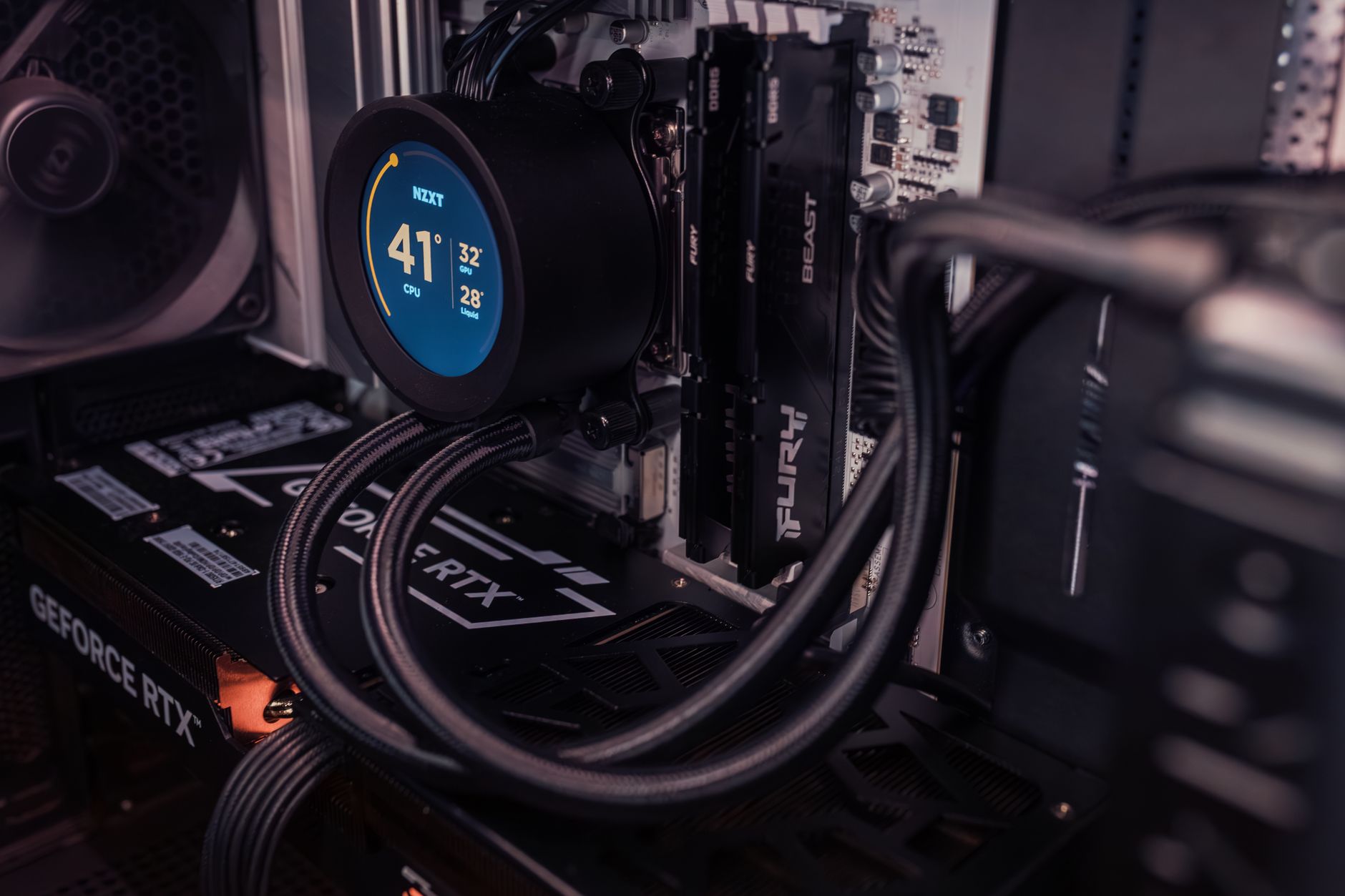


To improve Windows 11 performance, you should optimize system settings, remove unnecessary programs, manage startup apps, and adjust visual effects for better responsiveness. Regularly maintaining your hardware configuration and system software ensures your computer runs smoothly over time.
Monitoring System Health and Resource Usage
Before making changes to your configuration, you need to identify where your system is struggling. The primary tool for this task is the Task Manager. Press Ctrl + Shift + Esc to open Task Manager directly, then click on the Performance tab at the top of the window.
This tab provides a detailed, real-time view of your computer’s core metrics through live graphs:
- CPU: Shows how much processing power your system utilizes. If this graph remains constantly high, your processor is working too hard.
- Memory (RAM): Tracks utilization of your volatile memory. High memory consumption causes slowdowns when running multiple applications.
- Disk: Displays drive read and write speeds. Consistently high disk usage often points to background updates, heavy indexing, or failing hardware.
- Network: Monitors data transfer rates. High network usage can indicate background syncs or large file downloads affecting internet responsiveness.
If you notice persistent bottlenecks, use the Resource Monitor for granular details or close unnecessary programs immediately. Regularly updating your device drivers also helps maintain system stability.
Streamlining Software and Startup Processes
Over time, background software and unnecessary bloatware accumulate, dragging down even the newest hardware. To reclaim lost resources, debloat your operating system and control what launches at boot.
Start by cleaning out applications you no longer use via the Apps and Features menu. Next, tackle resource-heavy startup applications:
- Right-click the Start button and select Task Manager.
- Click the Startup apps tab on the left sidebar.
- Identify apps you do not need immediately upon boot (such as browser assistants, media players, or chat clients).
- Right-click the target application and select Disable.
Additionally, prevent background applications from consuming processing cycles. Navigate to Settings, Apps, and Installed apps, select more options on individual programs, and set background permissions to never. For gaming enthusiasts, ensure Windows Game Mode is enabled in your system settings to automatically limit background tasks and notifications while you play.
Tuning Visual Effects, Power, and Virtual Memory
Windows 11 utilizes modern transparency effects, window animations, and visual styles that tax your GPU and system memory. You can modify these settings to prioritize raw speed over aesthetics, especially on legacy hardware.
To disable resource-heavy animations:
- Press the Windows Key, type
sysdm.cpl, and hit Enter. - Navigate to the Advanced tab and click Settings under the Performance section.
- Select Adjust for best performance to turn off fancy animations and visual effects.
Alternatively, you can type "adjust appearance" in the Start menu search box to access this classic configuration menu directly. Beyond visuals, you can fine-tune virtual memory (paging file) settings through the same advanced properties menu by unchecking automatic management and setting a custom size based on your physical RAM allocation.
| Optimization Method | Primary Benefit | Difficulty Level |
|---|---|---|
| Disabling Startup Apps | Faster system boot times and lower idle resource consumption | Easy |
| Adjusting Visual Effects | Improved UI responsiveness on older hardware | Easy |
| Storage Sense & Temp Cleanup | Recovers disk space and reduces drive clutter | Easy |
| Configuring Virtual Memory | Better memory allocation under heavy workloads | Moderate |
| Hardware Upgrades (SSD / RAM) | Drastic reduction in load times and multitasking bottlenecks | Advanced |
Finally, maintain optimal physical hardware health. If your system consistently maxes out its storage drive, consider replacing a traditional mechanical HDD with a solid-state drive (SSD). Likewise, adding more RAM ensures your computer can handle heavy multitasking without relying heavily on virtual memory paging files.
Frequently Asked Questions
How do I open Task Manager in Windows 11?
You can open Task Manager directly by pressing the keyboard shortcut Ctrl + Shift + Esc. Alternatively, you can right-click the Start button and select Task Manager from the menu.
How do I disable startup apps to speed up boot times?
Right-click the Start button and select Task Manager, then click the Startup apps tab on the left sidebar. Identify applications you do not need immediately, right-click them, and select Disable.
How do I adjust visual effects for better performance?
Press the Windows Key, type sysdm.cpl, and hit Enter. Go to the Advanced tab, click Settings under the Performance section, and select Adjust for best performance to turn off resource-heavy animations.
References & Sources
- How to Check PC Performance in Windows 11: A Comprehensive Guide
- How-to Make Windows 11 Fast > The Ultimate Performance Guide
- How to Improve Windows 11 Performance: Boost Your PC's Speed Efficiently - Solve Your Tech
- Sluggish PC? These 15 Free Tricks Make Windows 11 Feel Brand New | PCMag
- Tips to improve PC performance in Windows | Microsoft Support
Editorial Note: This article was researched via verified live web sources and published on 2026-11-26. Questions or feedback? Contact the editorial staff at TrendsInNews.
Photo credit: Jakub Zerdzicki / Pexels