
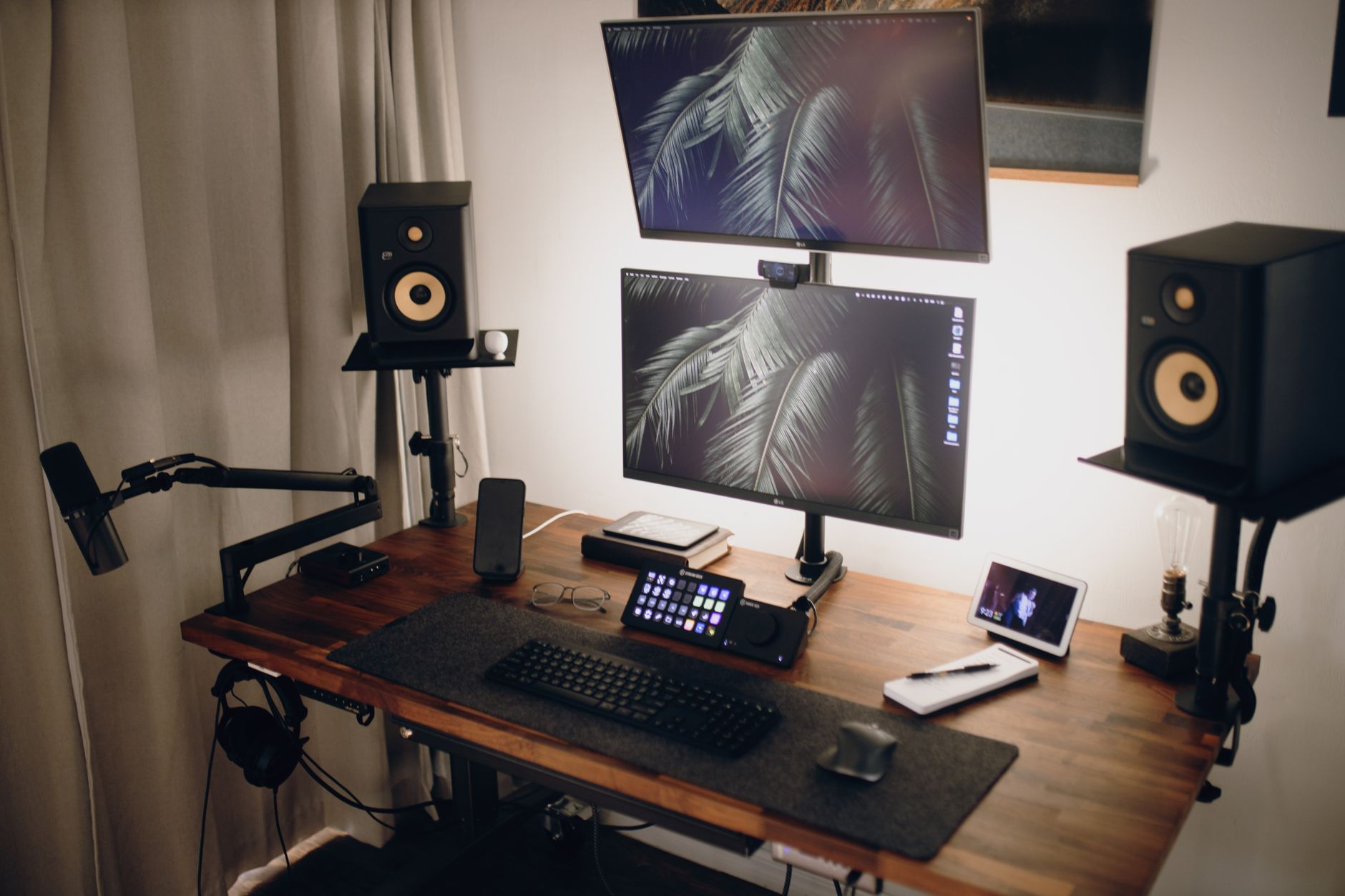

If your Elgato Stream Deck settings have suddenly vanished following a system boot or a software update, you are likely looking at a blank set of keys. This frustrating issue typically happens when multi-user environments interfere with hardware assignments or when application updates reset configuration file pathways.
Fortunately, you can usually recover your configurations or rebuild your workspace without starting entirely from scratch. Checking your profile configurations inside the desktop app is the primary step to bring your layout back to life.
Why Stream Deck Settings Disappear
Hardware controllers rely heavily on persistent software profiles to remember what each physical key does. When these preferences drop out, it usually points to one of two common scenarios. First, if another user connects the Stream Deck to the host machine under a different user profile, the software may default to a blank slate, overriding your personal layout upon the next bootup.
Second, software updates occasionally disrupt existing configuration parameters. Users have reported instances where letting the software update results in all presets and custom configurations seemingly vanishing from the interface. While the underlying macro files may still exist on the drive, the application fails to link them properly upon restarting.
Step-by-Step Guide to Restoring Your Default Profile
If your device boots up with a completely blank interface, you need to check the profile management settings within the official software. Rebuilding or re-linking your profile takes just a few clicks inside the dashboard.
- Launch the Stream Deck app on your computer desktop.
- Locate and click the Settings icon (represented by a physical cog or wheel) situated near the top right of the interface.
- Navigate directly to the Profiles tab within the configuration window.
- Click the plus (+) button to initiate a new profile sequence.
- Select Add to create a clean profile slate, then re-assign your essential actions and folders.
If you routinely back up your system, you can also import a previously saved profile archive directly from this menu to bypass manual reconfiguration entirely.
Preventing Future Configuration Loss
To safeguard your custom macros, hotkeys, and streaming software integrations against future update anomalies, adopting a proactive backup routine is essential. Exporting your active profiles periodically ensures that a rogue software patch or multi-user conflict will never permanently wipe out your work.
| Issue Trigger | Immediate Symptom | Recovery Action |
|---|---|---|
| Multi-User Boot | Blank keys after another user plugs in the hardware | Switch back to your user account and check the Profiles tab |
| Software Update | Presets missing entirely after letting the app update | Create a new profile via Settings or import a backup file |
By keeping your software updated through official channels and maintaining manual backups of your configuration files, you can quickly recover from unexpected profile drops and keep your stream running smoothly.
Frequently Asked Questions
Why did my Elgato Stream Deck settings disappear after bootup?
Settings can vanish after a system boot if another user connects the device to their session, or occasionally following a major software update that alters configuration paths.
How do I restore my default profile on a Stream Deck?
Open the Stream Deck app, click the Settings cog icon, navigate to the Profiles tab, click the plus (+) button, and select Add to build a fresh default setup.
Are my custom presets permanently deleted when an update goes wrong?
Not necessarily. While updates can hide or disconnect active profiles, you can often recover them manually through the Profiles menu in the desktop application settings.
References & Sources
- Stream Deck XL settings disappeared after bootup
- How to restore Stream Deck's default profile
- I let Stream Deck do an update and boom, all presets gone. ...
- Missing Graphics settings on the Steam Deck (NOW WITH A FIX!) :: Creatures of Ava General Discussions
- Elgato Stream Deck — How to Back Up and Restore Profiles
Editorial Note: This article was researched via verified live web sources and published on 2026-11-04. Questions or feedback? Contact the editorial staff at TrendsInNews.
Photo credit: Josh Sorenson / Pexels