
The Nintendo Switch 2 arrives as a direct, no-frills hardware evolution, bringing refined design, larger displays, and improved performance to players worldwide. Opening the box reveals a series of meaningful physical upgrades alongside a streamlined initialization process.
Unboxing the console introduces users to larger, more comfortable Joy-Cons, a sturdy new kickstand, and a significantly more premium chassis that completely leaves behind the plasticky feel of the original hardware. Whether you are upgrading from an older model or unboxing your very first Nintendo console, navigating the initial unboxing and setup sequence requires just a few straightforward steps.
Inside the Box: Unboxing the Nintendo Switch 2
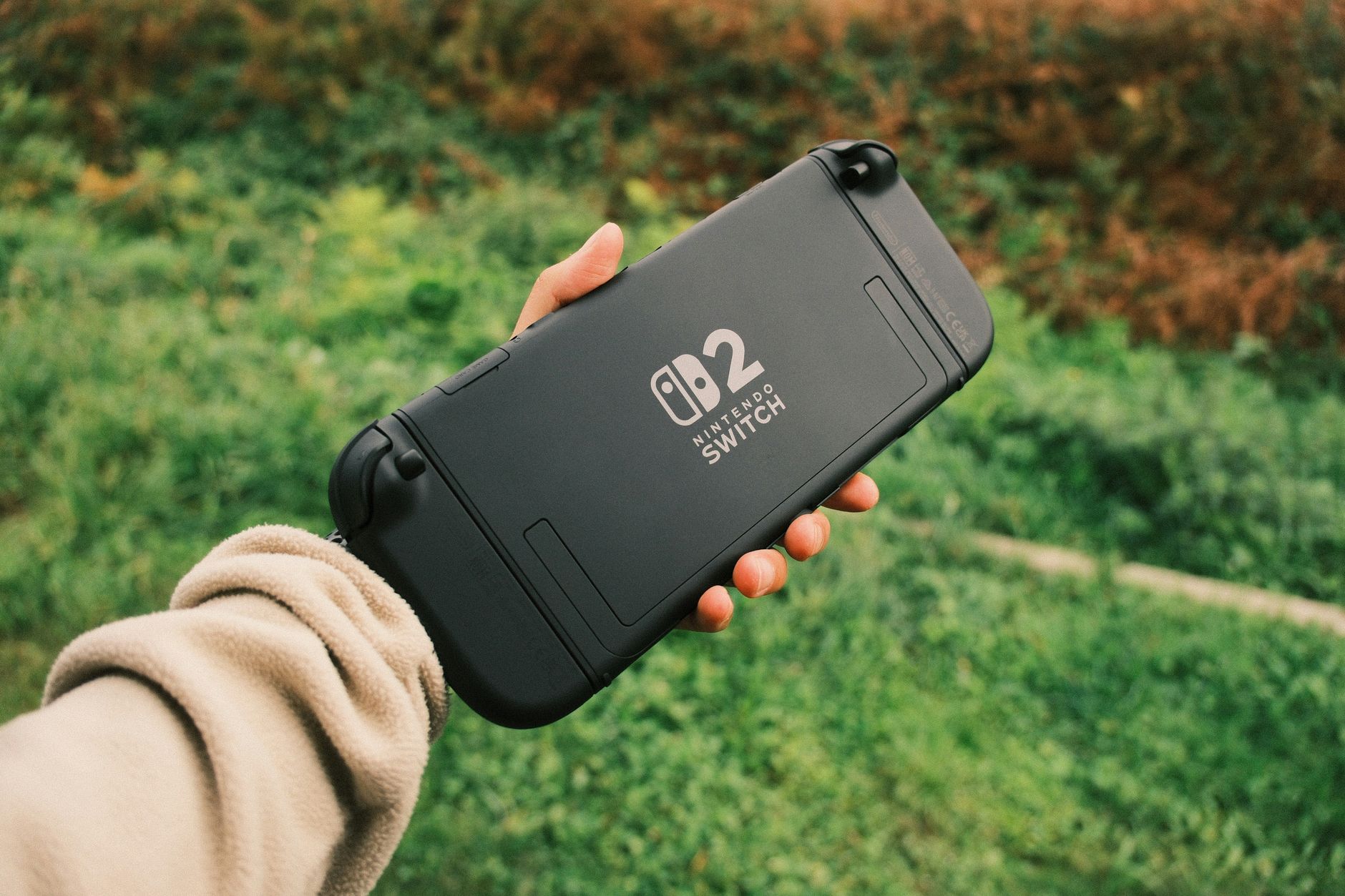
Lifting the lid on the Nintendo Switch 2 immediately highlights the shift in build quality. The console body feels remarkably slim and rigid, doing away with the flexible plastic texture found on the original generation. Initial unboxing impressions emphasize that the unit exudes a high-end feel.
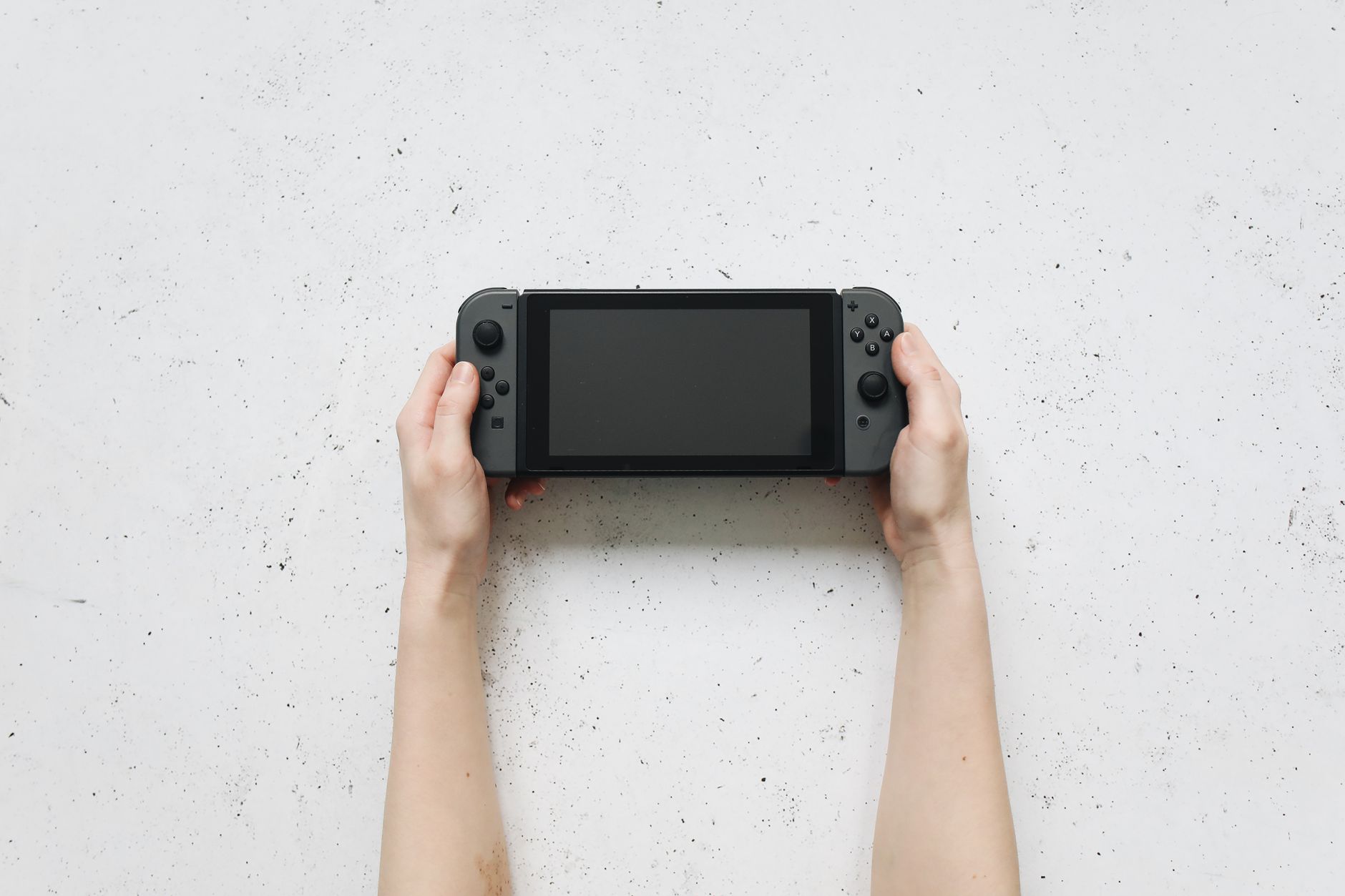
The updated Joy-Cons are noticeably larger, making them more comfortable in hand for extended gaming sessions. Furthermore, unpacking additional accessories like the newly designed Pro Controller or extra Joy-Cons reveals responsive mechanics and innovative physical features—including newly implemented mouse controls that even translate to smooth UI navigation.
Underneath the hardy, redesigned kickstand, users will find the storage slot. It is critical to note that the Switch 2 requires micro SD Express cards for storage expansion, so standard legacy micro SD cards will not work.
Hardware and Display Comparison
Once unpacked, turning on the system showcases the dramatic leap in display technology. The built-in screen is nearly two inches larger than the original console's panel, offering stellar visuals even during menu browsing. When docked, the hardware scales up to support 4K resolution, HDR, and 120 FPS gaming.
For players comparing generations, the architectural differences are substantial:
| Feature | Original Nintendo Switch | Nintendo Switch 2 |
|---|---|---|
| Handheld Resolution | 720p | Up to 1080p |
| Docked Output | Up to 1080p | Supports 4K, HDR, 120 FPS |
| Display Size | Standard baseline | Nearly 2 inches larger |
| Storage Expansion | Standard microSD | micro SD Express cards only |
| Controller Ergonomics | Compact, flatter profile | Larger, enhanced grip comfort |
Step-by-Step Setup and System Transfer
Powering on the console for the first time initiates the setup wizard. Users are greeted with customizable settings, including parental controls to limit game time and manage player profiles. If you are sharing the console among family members, configuring these preferences early ensures a smooth experience.
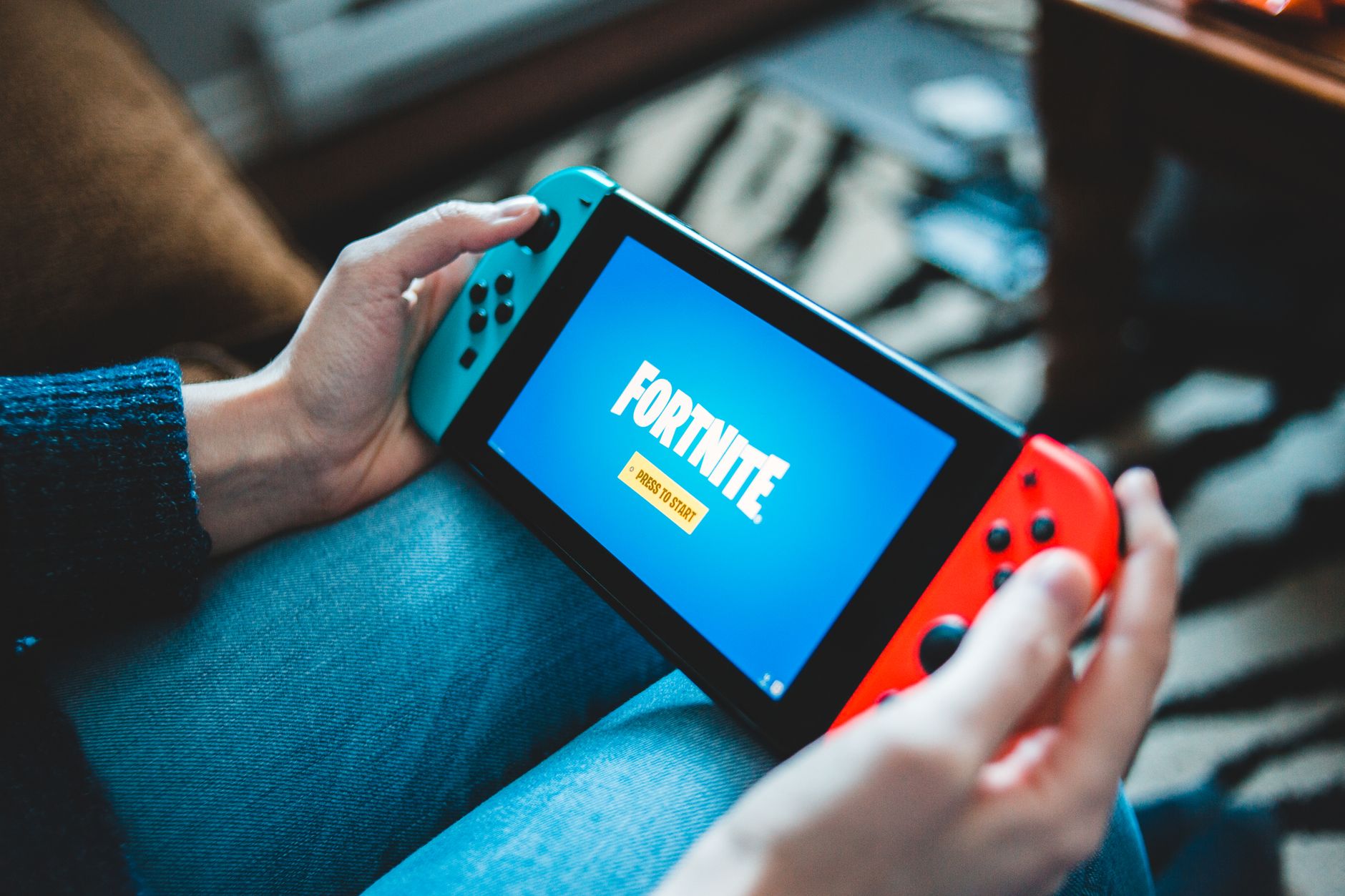
If you are upgrading, the built-in system transfer tool makes moving your digital ecosystem straightforward. Place your original Switch or Switch OLED near the new console and follow the on-screen menu prompts to migrate your user profile and saved data seamlessly. Once the transfer wraps up, you can redeem bundled software titles like Mario Kart World, jump into settings to tweak preferences, and begin testing out new mechanics like Fortnite gameplay in mouse mode.
Frequently Asked Questions
How do I transfer data from my original Nintendo Switch to the Switch 2?
You can easily migrate your profile, game data, and saves during the initial setup process by following the on-screen system transfer prompts from your original Switch or Switch OLED.
What kind of memory cards are compatible with the Nintendo Switch 2?
The Nintendo Switch 2 requires micro SD Express cards for expanded storage, which fit conveniently underneath the updated kickstand.
Does the Nintendo Switch 2 support games from the original console?
Yes, the system functions as a direct upgrade that plays the vast majority of the original Switch library, while introducing enhanced hardware supporting higher resolutions and 4K gaming on compatible displays.
References & Sources
- Watch: Unboxing Nintendo Switch 2! Set Up + System Transfer | Tom's Guide
- Nintendo Switch 2 - Unboxing, Setup, Comparison and Overview
- Nintendo Switch | Right here is one of the earliest unboxing and setup posts for Switch 2 | Facebook
- Nintendo Switch 2 Unboxing and Setup!
- Nintendo Switch 2 Review - Business Insider
Editorial Note: This article was researched via verified live web sources and published on 2026-11-10. Questions or feedback? Contact the editorial staff at TrendsInNews.
Photo credit: Daniel J. Schwarz / Pexels