
Getting the most out of your portable gaming handheld requires a careful balance between visual fidelity, frame rates, and power consumption. By applying specific display settings, upscaling technologies, and software tweaks, you can significantly improve your hardware output.
To achieve the optimal balance of fluidity and hardware conservation, set your resolution to 1280x800, cap your frame rate between 30 to 35 FPS (or target 40 FPS for smoother pacing), and utilize AMD FSR with custom render scales.
Optimizing In-Game Graphics and Anti-Aliasing
When tweaking individual graphical sliders, certain settings demand disproportionately high amounts of processing power. Managing these features correctly prevents sudden frame drops and excessive battery drain.
Anti-aliasing settings heavily dictate your performance overhead. You must avoid resource-heavy options like SSAA or MSAA, as they consume an immense amount of power on the handheld's architecture. Instead, configure your game to use FXAA or TAA for a cleaner edge-smoothing effect with minimal hardware tax.
Additionally, pay close attention to environmental rendering features:
- Screen Space Reflections: Reduce all reflections to the lowest possible settings, as they are inherently expensive to process.
- Ambient Occlusion: This setting varies significantly depending on the underlying algorithm used by the game. Experiment with different levels to see which tier impacts your performance the least.
- Motion Blur: Turn this off entirely to reclaim minor performance overhead and improve visual clarity during fast camera movements.
Leveraging Upscaling and Frame Rate Caps
Because native rendering of heavy modern titles can push the hardware past its limits, deploying upscaling solutions is critical. For demanding games, configure your graphics menu with a custom upscaling profile.
Using AMD FSR with a custom render scale set to 60% and sharpness pushed to 200% allows the system to render the image at a lower internal resolution before upscaling it sharply to the screen. To assist with performance pacing, enable Dynamic Resolution Scaling alongside a frame limit of 30-35 FPS or Half Rate Shading.
| Target Metric | Frame Time Interval | Use Case / Benefit |
|---|---|---|
| 60 FPS | 16.7 ms | Ideal for lightweight indie titles and maximum responsiveness, though high battery drain. |
| 40 FPS | 25.0 ms | The community-favorite sweet spot balancing fluid motion and manageable power draw. |
| 30 FPS | 33.3 ms | Necessary for heavy AAA games to eliminate stutter and protect battery life. |
System-Level Adjustments and Beta Features
Performance optimization goes beyond the graphics menu; tweaking the underlying system software unlocks better operational stability. Start by switching your device directly into Gaming Mode for an interface built entirely around resource efficiency.
To ensure you have access to the latest optimizations, adjust your system software preferences:
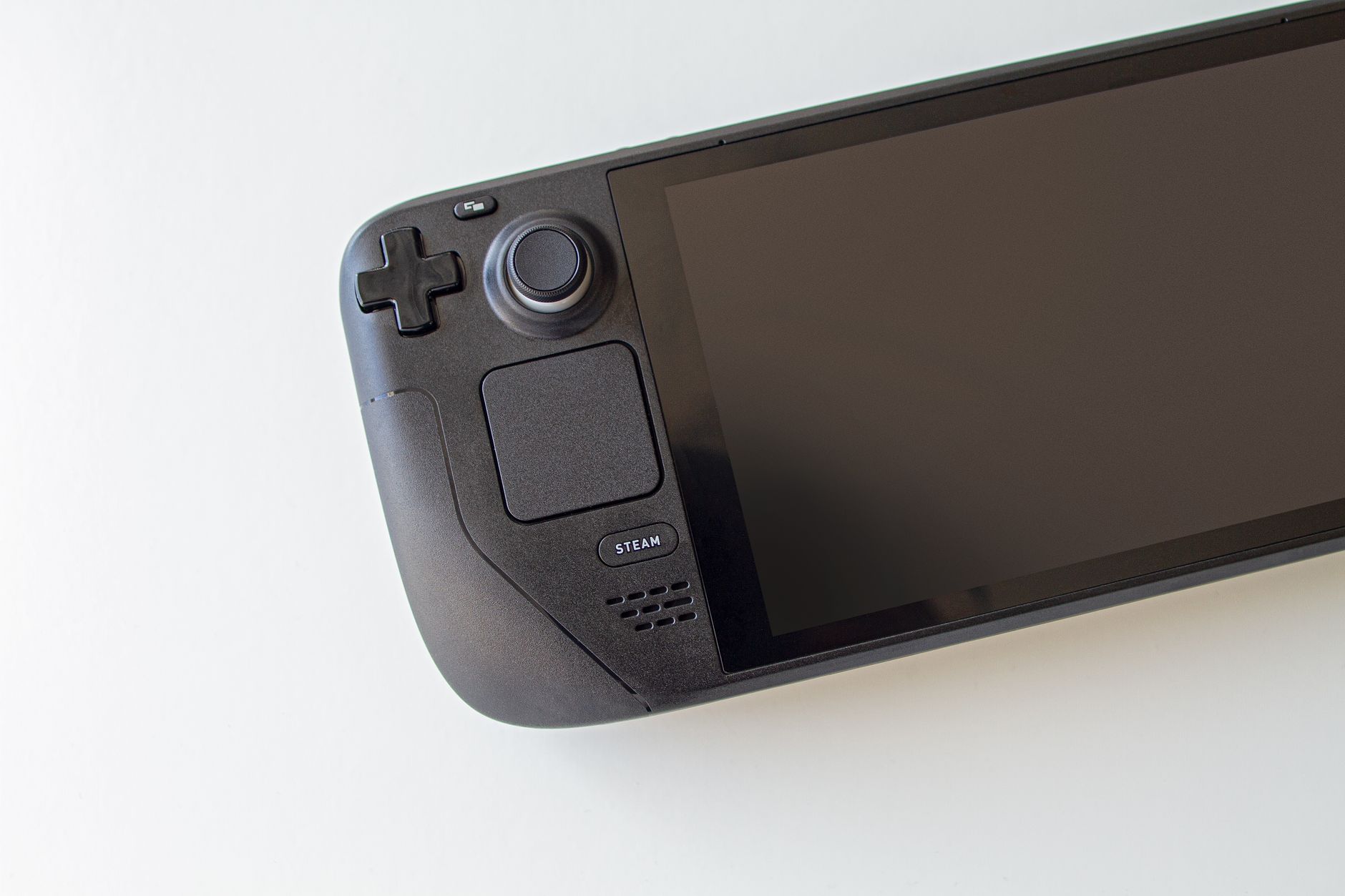
- Press the Steam button on your controller and select Settings.
- Scroll up and click on the System tab.
- Locate the System Update Channel and change it from Stable to Beta.
- Apply the update when prompted and restart your device.
Furthermore, if you intend to configure advanced utilities or homebrew packages later, ensure you secure your environment by defining a local root password via the desktop terminal, keeping in mind that the system ships with no password by default for security purposes.
Frequently Asked Questions
What is the best resolution to use on the Steam Deck for performance?
The native display resolution of 1280x800 (16:10 aspect ratio) should be used. Pairing this with AMD FSR upscaling at a 60% render scale and 200% sharpness helps maintain high visual clarity while saving valuable hardware resources.
Should I target 30 FPS or 40 FPS on the Steam Deck?
While 30 FPS is reliable for heavy titles and maximum battery life, targeting 40 FPS serves as an ideal middle ground for smoothness and responsiveness. On Steam Deck OLED models, 40 FPS maps cleanly to a 90Hz refresh rate.
How do I change my Steam Deck update channel to Beta?
Switch your device to Gaming Mode, press the Steam button, select Settings, navigate to System, and change the System Update Channel to Beta to receive potential performance improvements.
References & Sources
- GitHub - denis-g/steam-deck-optimization-guide: 🎮 This guide contains descriptions of settings and utilities for safely improving the performance, and useful information for advanced Steam Deck users. All settings supported LCD and OLED versions. · GitHub
- Steam Deck Best Settings and Performance Guide - Forza Horizon 6 Guide - IGN
- Steam Deck Performance Guideline - Wicked Tips & Tricks - No Rest For The Wicked
- I Mastered the Steam Deck OLED. - 30 Tips in Under 8 Minutes
- Reviews - Steam Deck HQ
Editorial Note: This article was researched via verified live web sources and published on 2026-10-10. Questions or feedback? Contact the editorial staff at TrendsInNews.
Photo credit: Edgar Almeida / Pexels