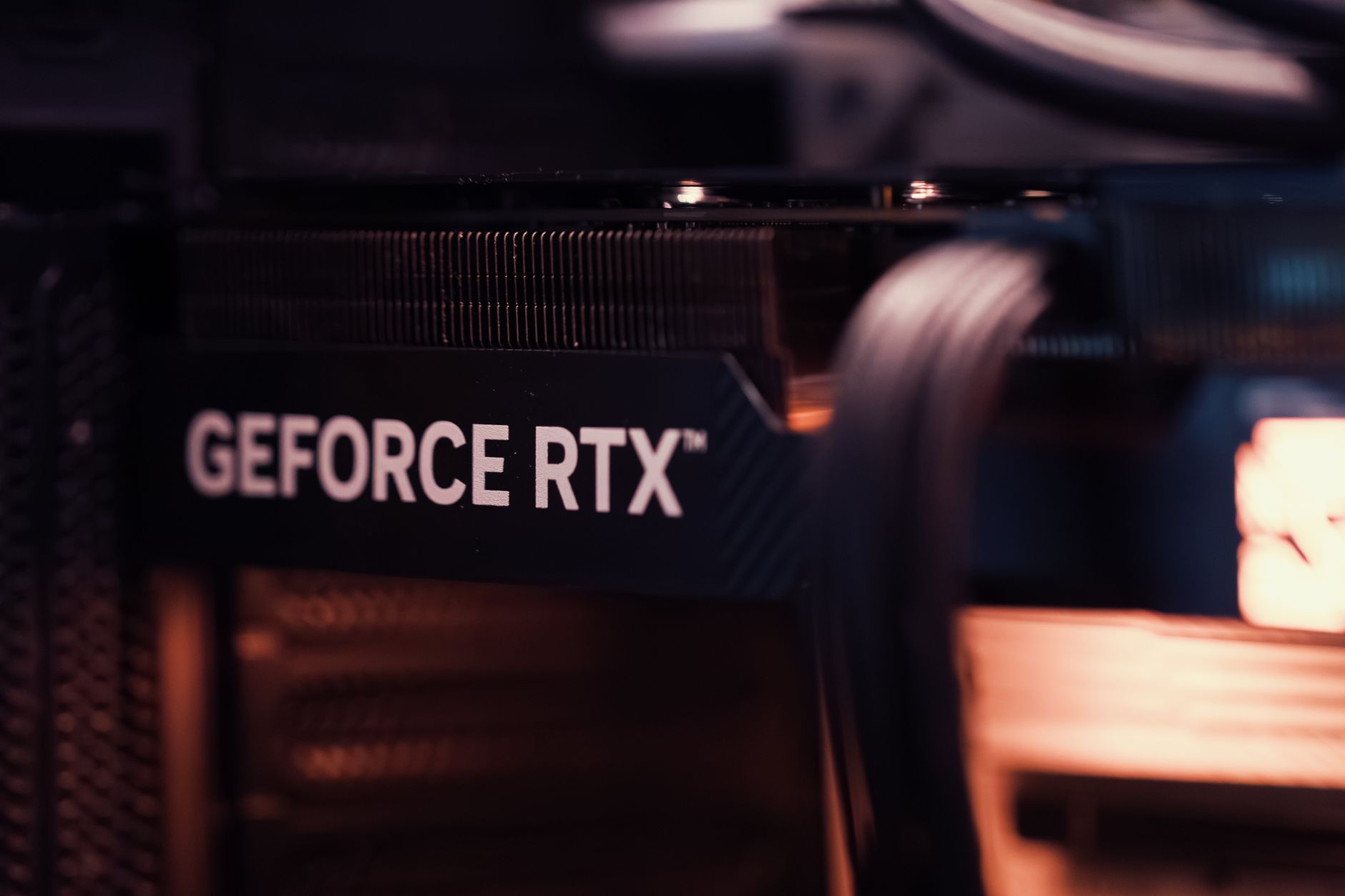

Configuring your system correctly ensures you get the absolute most out of your high-end hardware without dealing with unneeded stutter or driver conflicts. For the RTX 4080, optimizing your setup relies on a balanced mix of default configurations, strategic power adjustments, and intelligent software applications.
To maximize the capabilities of the Ada Lovelace architecture, you need a streamlined approach to your graphics software. This guide covers the essential adjustments needed to maintain high frame rates, stable frame times, and ideal thermal behavior.
NVIDIA Control Panel and Software Optimization
A common debate among hardware enthusiasts centers on how much tweaking is required inside the NVIDIA Control Panel. While older architectures often demanded extensive profile modifications, modern cards like the RTX 4080 handle most tasks natively through the application layer.
For general gaming, the recommended baseline approach is to set “Adjust image settings with Preview” to “Let the 3d application decide” inside the NVIDIA Control Panel. This allows the game engine to communicate directly with your hardware without conflicting global overrides.
However, competitive and performance-focused users often adjust specific parameters to eliminate micro-stutters. A critical adjustment is changing the power management mode to "preferred maximum performance." This stops the GPU from downclocking during slight lulls in gameplay, keeping your frame rates and frame times consistently stable.
Leveraging Advanced Architecture and DLSS Features
The RTX 4080 relies on the Ada Lovelace architecture, featuring third-generation RT Cores and specialized Tensor cores designed to handle intensive ray tracing and AI upscaling workloads. Understanding how to utilize these features directly impacts your visual fidelity and performance.
When diving into graphically demanding titles featuring advanced ray tracing or path tracing—such as Cyberpunk 2077 or Alan Wake 2—enabling NVIDIA DLSS 3 with Super Resolution and Frame Generation is essential for maintaining high frame rates at resolutions like 3840x2160. Conversely, in competitive titles or games where ray tracing adds minimal value (such as World of Warcraft), keeping ray tracing turned off allows you to max out native settings effortlessly.
Additionally, web browsing and video consumption benefit from enabling RTX Video Super Resolution (VSR) under the video enhancement settings. VSR uses your GPU's tensor cores to automatically upscale lower-resolution online video streams, providing a sharper viewing experience.
Core Hardware Feature Matrix
| Feature | RTX 4080 Support | Primary Benefit |
|---|---|---|
| Architecture | Ada Lovelace | High efficiency and advanced ray tracing execution. |
| NVIDIA DLSS | DLSS 3.5 (Super Resolution, Ray Reconstruction, Frame Generation) | AI-powered scaling for maximum FPS and visual fidelity. |
| NVIDIA Reflex | Yes | Reduces system latency for competitive gaming. |
| RTX Video Super Resolution | Yes (Tensor-core powered) | Upscales online video streams for sharper playback. |
Managing Thermals and Fan Noise
Even with a robust cooling solution, high-end GPUs can occasionally ramp up their fans during unconstrained loading screens or intensive zone transitions. For example, uncapped frame rates in certain RPG environments can push the RTX 4080 to render hundreds of unnecessary frames per second, causing a spike in power draw and fan speeds.
To keep your system quiet and efficient, consider implementing a framerate cap (such as 100 FPS or matching your monitor's refresh rate sweet spot). Capping your FPS prevents the graphics card from working overtime when additional frames provide no perceptible benefit, resulting in a cooler, quieter desktop experience without sacrificing visual quality.
Frequently Asked Questions
What are the best baseline NVIDIA Control Panel settings for an RTX 4080?
For most configurations, set "Adjust image settings with Preview" to "Let the 3D application decide" and leave the rest of the options on default to avoid conflicts.
Should I change the power management mode for my RTX 4080?
Yes, setting the power management mode to "preferred maximum performance" prevents your GPU from downclocking mid-game, which maintains consistent frame rates and tight frame times.
How do I fix high fan noise during demanding game sessions?
You can cap your maximum framerate (for example, to 100 FPS) to prevent the GPU from rendering unnecessary frames, which keeps temperatures down and reduces fan noise.
References & Sources
- Question on settings for an Nvidia 4080 - General Discussion - World of Warcraft Forums
- GeForce RTX 4080 SUPER and RTX 4080 Graphics Cards | NVIDIA
- How to optimize Nvidia Control Panel settings for gaming and overall performance - Digital Trends
- BEST NVIDIA App Settings for Gaming (ULTIMATE GUIDE 2026)
- How PROS Optimize Nvidia Control Panel For Gaming! 🔧 (Boost FPS & Zero Delay)
Editorial Note: This article was researched via verified live web sources and published on 2026-11-08. Questions or feedback? Contact the editorial staff at TrendsInNews.
Photo credit: Matheus Bertelli / Pexels