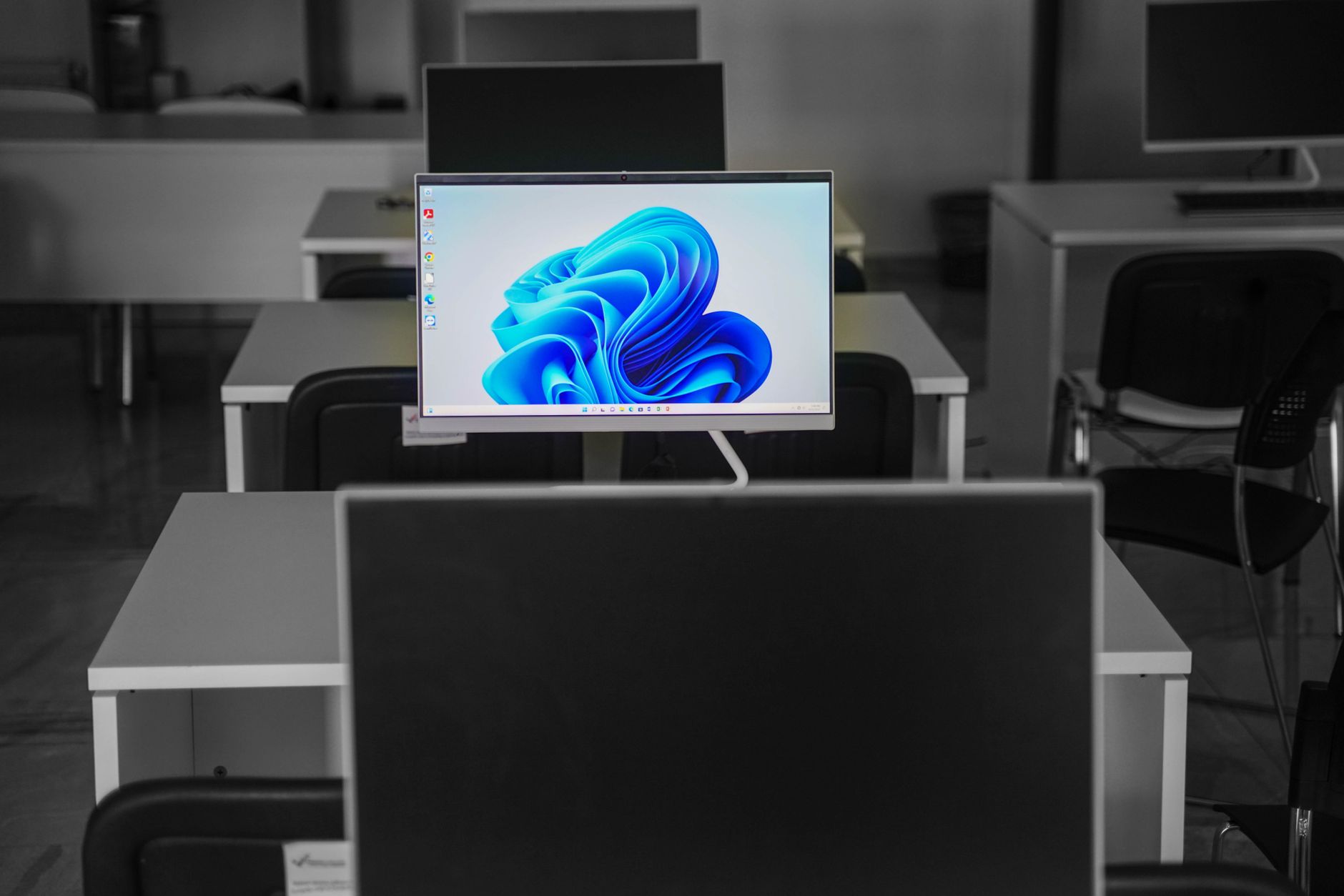


To optimize Windows 11 performance, you can adjust system and power settings, disable unnecessary background processes, and tweak visual effects. For users seeking a smoother, faster operating system experience, applying these targeted changes frees up critical CPU, GPU, and RAM resources.
Streamlining System Appearance and Visual Effects
Windows 11 comes packed with animations, drop shadows, and transparency effects that look modern but consume unnecessary system resources. If your computer uses integrated graphics or an older processor, these graphical elements can make the interface feel sluggish compared to older operating systems.
To fix this, press your Windows key, type sysdm.cpl, and hit Enter to open the System Properties control panel. Select the Advanced tab and click Settings in the Performance pane. Here, you can select Adjust for best performance. To keep the operating system from looking overly dated, you can manually recheck options like show thumbnails instead of icons, show window contents while dragging, and smooth edges of screen fonts.
Additionally, you can switch off transparency in your personalization settings to further lighten the load on your system's graphics pipeline.
Optimizing Background Processes and Startup Apps
A major cause of a slow computer is the accumulation of apps launching automatically at boot or running invisibly in the background. By minimizing the number of programs that start automatically, your PC will finish booting much faster.
Press Ctrl + Shift + Esc to open the Task Manager, then navigate to the Startup apps tab. Review the components using high resources and disable anything you do not actively need upon startup. Similarly, check your system settings to restrict apps from running in the background. Restricting background permissions for apps you rarely use helps preserve CPU and RAM cycles.
Enhancing Gaming Performance and Hardware Settings
If your primary goal is maximizing frame rates and reducing input lag for gaming, several built-in and hardware-level adjustments make a measurable difference.
First, ensure that Game Mode is enabled by navigating to Settings > Gaming > Game Mode. This feature automatically limits background tasks, pauses unnecessary notifications, and stabilizes frame rates. Next, consider disabling Memory Integrity under Core Isolation settings. While designed for security, virtualization-based security can introduce performance overhead that lowers gaming frame rates by 2 to 5 percent.
| Optimization Technique | Primary Benefit | Difficulty Level |
|---|---|---|
| Visual Effects Adjustment | Improves UI responsiveness and menu speed | Easy |
| Startup App Management | Shortens boot times and frees memory | Easy |
| Disabling Memory Integrity | Boosts gaming FPS (2-5% gain) | Moderate |
| Using Optimization Utilities | One-click cache cleaning and telemetry tweaks | Easy |
Finally, check your BIOS settings to ensure your RAM is running at its advertised speed by enabling XMP or DOCP profiles, as default settings often run memory at a slower baseline speed. If you are gaming or working on a laptop, always plug into a wall outlet rather than running on battery power to fully open the throttle on your CPU.
Frequently Asked Questions
Does turning off transparency effects actually speed up Windows 11?
Yes, disabling transparency and visual effects reduces the graphical load on your integrated or older GPU, making window resizing and interface navigation feel noticeably snappier.
How does disabling Memory Integrity improve gaming performance?
Disabling Memory Integrity (Core Isolation) removes virtualization-based security overhead that independent testing shows can cost a PC between 2 to 5 percent in gaming frame rates.
What is the fastest way to clean up storage and manage startup apps?
You can use built-in tools like Storage Sense and the Startup apps tab in Task Manager, or utilize trusted utilities like PC Manager and Hone for quick, one-click system optimizations.
References & Sources
- How to Optimize Windows 11 for Gaming & Performance in 2026📈
- 12 easy tweaks that maximize your Windows 11 PC's speed | PCWorld
- Sluggish PC? These 15 Free Tricks Make Windows 11 Feel Brand New
- How to Fully Optimize Windows 11 For Gaming
- Tips to improve PC performance in Windows | Microsoft Support
Editorial Note: This article was researched via verified live web sources and published on 2026-11-16. Questions or feedback? Contact the editorial staff at TrendsInNews.
Photo credit: RDNE Stock project / Pexels