
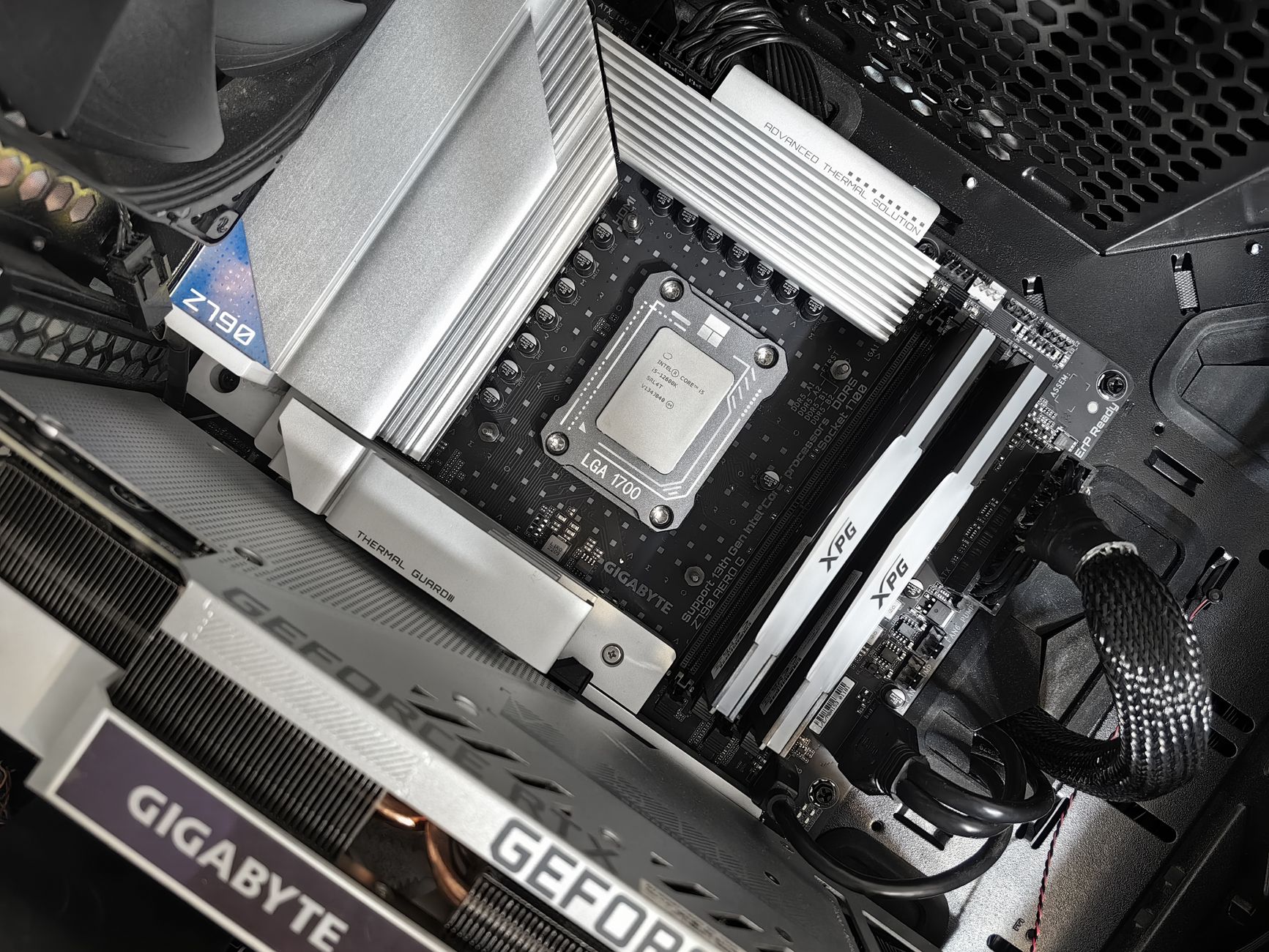

To significantly improve Windows 11 performance, disable unnecessary startup applications in Task Manager, turn off search indexing via services.msc, and adjust your visual effects for optimal speed. Implementing these configuration adjustments frees up critical system resources and restores responsiveness.
Streamlining Boot Times and Startup Apps
When your computer first boots up, numerous applications often launch automatically in the background. This not only increases boot times but also drains memory before you even begin working. To reclaim these resources, you should review your startup configuration.
Open Task Manager using the shortcut Ctrl + Shift + Esc and navigate to the Startup apps section. Here, evaluate applications based on their startup impact. Disable programs that you do not need immediately after signing in, making sure to keep essential security software and system utilities active. Reducing this unnecessary load results in a cleaner working environment as soon as Windows loads.
Mitigating Graphical Load and Managing Background Processes
Windows 11 features a heavier graphic load than any of its predecessors, relying on transparency, shadow, and animation effects that can tax system resources. If your computer is low on RAM, these visual elements can cause noticeable lag.
To alleviate this, search for performance in the Start menu and select Adjust the appearance and performance of Windows. Under the Visual Effects tab, you can choose Adjust for best performance to strip away resource-heavy graphical flourishes, or selectively uncheck individual effects you can live without. Additionally, manage background activity through your system settings by navigating to Settings > Apps > Installed apps, selecting an application's advanced options, and setting background app permissions to Never. This practice conserves battery life on laptops while reserving resources for active tasks.
For applications you use frequently, make use of Efficiency Mode inside the Task Manager processes tab to limit their resource consumption. Furthermore, enable Game Mode via Settings > Gaming to automatically pause notifications, suppress background updates, and stabilize frame rates while playing games.
Optimizing System Storage and Advanced Services
A nearly full storage drive can severely degrade system performance and make file management difficult. Windows 11 includes built-in storage management tools designed to reclaim valuable disk space safely.
Use Storage Sense to automate the removal of temporary files, cache, and redundant system data. Running a regular Disk Cleanup routine is a reliable way to resolve storage-related slowdowns over the long term. Beyond storage management, advanced tweaks like turning off search indexing via services.msc (by locating the Windows Search service) can boost performance on slower hardware by stopping continuous background file cataloging. You can also experiment with the Memory Compression Tweak or disable Superfetch if your system experiences high disk usage or lag.
| Optimization Method | Where to Access | Primary Benefit |
|---|---|---|
| Startup App Management | Task Manager > Startup apps | Faster boot times and cleaner initial desktop environment |
| Visual Effects Adjustment | Control Panel / Performance Options | Lower GPU and CPU overhead on older hardware |
| Storage Sense & Disk Cleanup | Settings > System > Storage | Reclaims disk space and resolves storage-related lag |
| Game Mode | Settings > Gaming | Stabilizes frame rates and limits background interruptions |
Frequently Asked Questions
How do I stop programs from running automatically when Windows 11 boots up?
Open Task Manager by pressing Ctrl + Shift + Esc, navigate to the Startup apps section, review the impact list, and disable programs you do not need immediately after signing in.
Does turning off visual effects actually speed up Windows 11?
Yes, disabling demanding shadow, animation, and transparency effects reduces the graphical load on your hardware, which notably improves system responsiveness on lower-end or older computers.
What is Windows 11 Game Mode and how do I enable it?
Game Mode limits background tasks, pauses notifications, and prevents OS updates while gaming to help achieve more stable frame rates. You can enable it directly by navigating to Settings > Gaming.
References & Sources
- Windows 11 Tips and Tricks for Better Performance and Productivity - Techsslaash.com
- Speed up your PC with Windows 11 - Kingston Technology
- Sluggish PC? These 15 Free Tricks Make Windows 11 Feel Brand New | PCMag
- How can I speed up my computer running windows 11? - Windows - Level1Techs Forums
- Tips to improve PC performance in Windows | Microsoft Support
Editorial Note: This article was researched via verified live web sources and published on 2026-11-27. Questions or feedback? Contact the editorial staff at TrendsInNews.
Photo credit: Andrey Matveev / Pexels