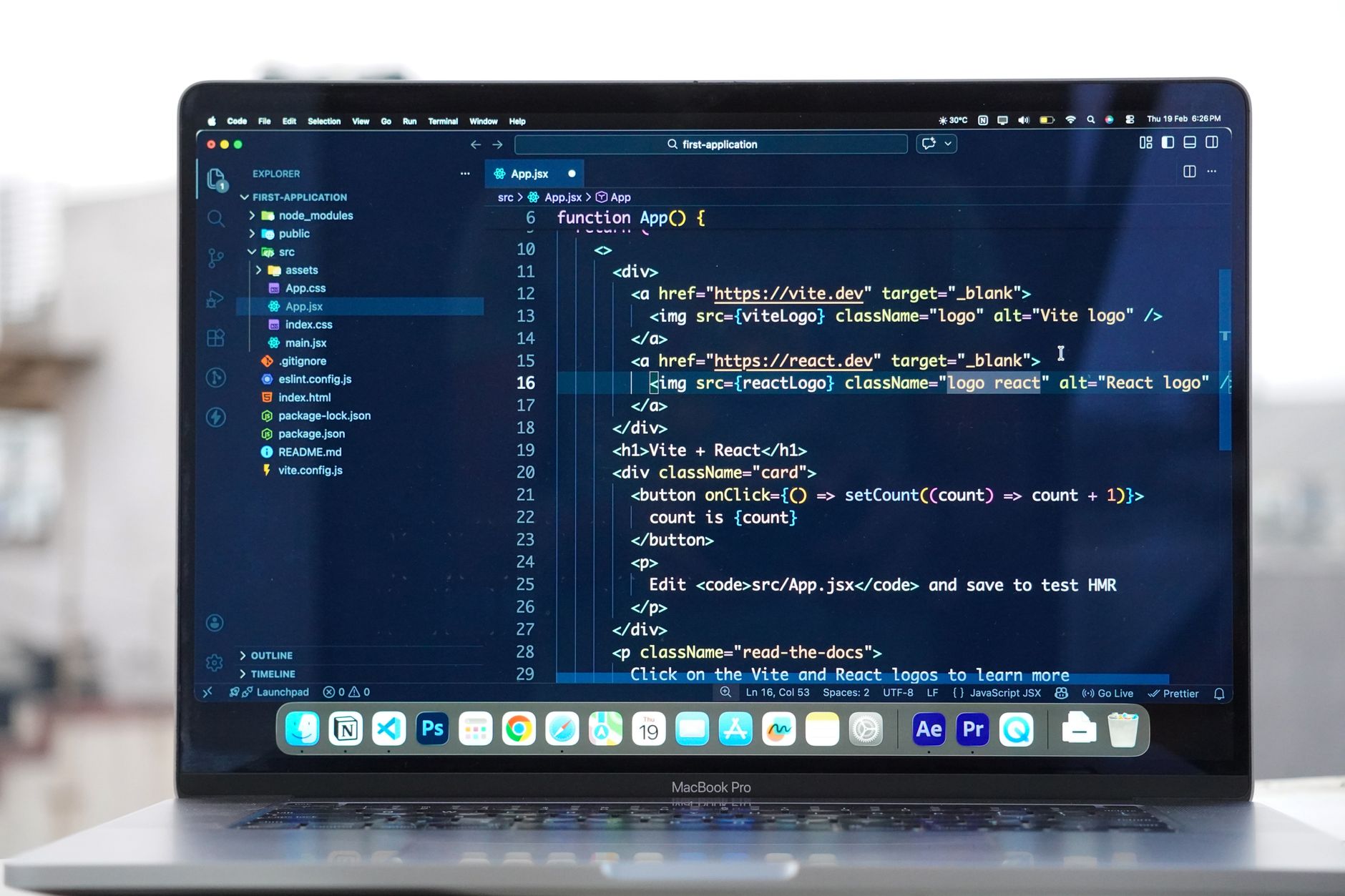


Customizing Visual Studio Code allows you to tailor your text editor's appearance, code formatting, and core behaviors to match your exact workflow requirements. You can easily modify these configurations using either the visual Settings editor or the raw settings.json configuration file.
Navigating the VS Code Settings Interface
The easiest way to start modifying your environment is through the built-in graphical interface. You can open the Settings editor using shortcut keys or through the main application menus.
- Keyboard Shortcut: Press
⌘,on macOS orCtrl+,on Windows and Linux. - Application Menu: Select
File > Preferences > Settings. - Activity Bar: Click the Manage gear icon located at the bottom-left corner and select
Settings.
Inside the Settings editor, you can use the search bar to look up specific preferences—such as Auto Save or font settings—and immediately alter values via dropdown menus or text inputs. If you want to locate configurations you have previously altered, type @modified into the search bar or select the Modified filter. To revert a customized option back to its factory default, select the gear icon next to the setting and click Reset Setting.
Understanding User vs. Workspace Settings
When configuring your development environment, understanding setting scopes is essential. VS Code separates preferences into two primary categories to give you granular control over your setup.
| Setting Scope | Where it Applies | File Location / Storage | Precedence |
|---|---|---|---|
| User Settings | All workspaces and projects globally across your machine. | Stored globally in user profile directories. | Lower precedence; overridden by workspace settings. |
| Workspace Settings | Only the currently open workspace folder. | Stored locally in .vscode/settings.json within the project folder. |
Higher precedence; overrides global User settings. |
Use the User and Workspace tabs at the top of the Settings editor to switch between scopes seamlessly. Workspace settings are particularly helpful when working on team projects that require specific tab sizes, linters, or code formatters unique to that codebase.
Editing settings.json Directly
While the graphical interface works well for basic tweaks, many developers prefer working directly with the underlying configuration file for advanced customizations. You can open and edit your configuration file manually by utilizing the Command Palette.
- Open the Command Palette using
Cmd + Shift + Pon macOS orCtrl + Shift + Pon Windows and Linux. - Type and select “Preferences: Open User Settings (JSON)” and press
ENTER.
Editing settings.json directly allows you to implement granular control over editor behavior, such as enabling auto-save delays, adjusting language-specific indentation, or adding custom font families like Cascadia Code:
{
  "files.autoSave": "afterDelay",
  "files.autoSaveDelay": 100,
  "editor.formatOnSave": true,
  "editor.fontFamily": "Cascadia Code, Consolas, 'Courier New', monospace",
  "[python]": {
    "editor.insertSpaces": true,
    "editor.tabSize": 4
  }
}
If you prefer to bypass the graphical settings UI entirely, you can configure VS Code to always open the raw configuration file by setting workbench.settings.editor to json. Additionally, you can utilize direct settings URLs (such as vscode://settings/workbench.colorTheme) to navigate straight to specific settings from external browsers or documentation pages.
Frequently Asked Questions
How do I open the VS Code settings editor?
You can open the Settings editor by pressing ⌘, on macOS or Ctrl+, on Windows and Linux. Alternatively, you can select File > Preferences > Settings from the top menu.
What is the difference between User and Workspace settings?
User settings apply globally across all of your workspaces and projects. Workspace settings apply only to the current active workspace, are saved in a .vscode/settings.json file, and automatically override your global User settings.
How do I edit settings directly in JSON format?
Open the Command Palette using Cmd+Shift+P on macOS or Ctrl+Shift+P on Windows and Linux, then type and select "Preferences: Open User Settings (JSON)". You can also configure VS Code to always open settings as a JSON file by changing the workbench.settings.editor property.
References & Sources
- Tutorial: Get started with Visual Studio Code
- VS Code Settings – Workbench Documentation Release 2026.09.0
- User and workspace settings
- VS Code for Absolute Beginners | 2026
- My Visual Studio Code Setup · We Learn Code
Editorial Note: This article was researched via verified live web sources and published on 2026-11-19. Questions or feedback? Contact the editorial staff at TrendsInNews.
Photo credit: Nemuel Sereti / Pexels