
Optimizing your PlayStation 5 settings allows you to fine-tune your console for better gaming performance, enhanced visual quality, and superior audio. You can also manage privacy, reduce power consumption, customize controller behavior, and troubleshoot network connectivity to tailor the PS5 experience to your specific preferences and hardware.
Getting Started: Accessing Your PS5 Settings
All PlayStation 5 settings are accessible from a central menu. From the PS5 home screen, navigate to the upper right corner and select the gear icon, labeled "Settings." This will open a comprehensive menu where you can adjust various aspects of your console.
Optimizing for Performance and Visuals
The PS5 offers several settings to enhance your gaming experience, whether you prioritize smooth gameplay or stunning graphics. Understanding these trade-offs is key to making the right choices for your play style and display.
Game Presets: Performance vs. Resolution
Game Presets allow you to set default preferences for how supported games run. You can configure these under Settings > Saved Data and Game/App Settings > Game Presets.
- Performance Mode: Choose this if you prioritize higher frame rates for smoother, more responsive gameplay. This is often preferred for competitive games or those where quick reactions are crucial.
- Resolution Mode: Select this to prioritize higher graphic quality and visual fidelity. This mode is ideal for story-driven games, cinematic experiences, or when you want to appreciate detailed environments.
Game Presets also let you set a default difficulty, configure first-person or third-person camera views, and choose subtitle and audio language for supported titles. Remember that these presets only apply to games that specifically offer and support these options; some games may also require enabling performance or 120Hz modes within their own in-game settings.
Display and Video Output
Your display settings are crucial for achieving the best visual experience. Access these under Settings > Screen and Video > Video Output.
- Variable Refresh Rate (VRR): If you have an HDMI 2.1 compatible TV, enable VRR. This dynamically adjusts your screen's refresh rate to match the game's frame rate, significantly reducing stuttering and smoothing out motion for a more fluid visual experience.
- 120Hz Output: For games that support it, enabling 120Hz output can provide an even smoother visual experience on compatible displays.
- ALLM (Auto Low Latency Mode): Set ALLM to Automatic. This feature allows your PS5 to automatically switch compatible TVs into a low-latency game mode, which helps reduce input lag.
- HDR Settings: Adjust your HDR (High Dynamic Range) settings to ensure colors and contrast are displayed accurately on your HDR-compatible TV.
Tip: To confirm your TV supports VRR, 120Hz, or ALLM, check your TV's specifications or consult its user manual. These features typically require an HDMI 2.1 port.
Enhancing Audio
The PS5 offers advanced audio capabilities, including 3D audio, to immerse you further in your games. You can find audio settings under Settings > Sound > Audio Output.
3D Audio: The PS5 supports 3D audio for both headphones and compatible TVs. Follow the on-screen instructions to configure 3D audio for your specific setup, whether you're using a headset or your TV's built-in speakers.
Power Management and Energy Efficiency
Managing your PS5's power settings can help save energy and keep your console updated.
Rest Mode Configuration
The PS5 has three power states: on, rest mode, and off. Rest Mode is a low-power state that allows the console to charge controllers, download system updates, and update games in the background. Configure this under Settings > System > Power Saving, then adjust "Set Time Until PS5 Enters Rest Mode."
Tip: While convenient, leaving your PS5 in Rest Mode during a power outage can potentially corrupt system data. Using cloud saves, available with a PlayStation Plus subscription, is highly recommended to protect your game progress.
Power Saver for Games
Sony recently introduced a "Power Saver for Games" feature designed to reduce energy consumption. To enable this, go to Settings > System > Power Saving > Power Saver for Games and toggle "Use Power Saver" on.
When active, this feature can reduce energy consumption by over 50% in supported games by scaling back performance. Specifically, the PS5's CPU threads can drop from 16 to 8, memory bandwidth is halved, and GPU clocks drop to a "base clockspeed." Be aware that this mode may disable VR mode and limit some gameplay features in supported titles, presenting a trade-off between energy savings and peak performance.
Network Connectivity and Troubleshooting
A stable internet connection is vital for online gaming, updates, and digital content. You can manage your network settings under Settings > Network > Settings.
Setting Up Internet Connection
- Wi-Fi: Go to Settings > Network > Settings > Set up Internet Connection and select your desired Wi-Fi network from the list.
- LAN (Wired): Connect an Ethernet cable from your PS5 to your router. Then, go to Settings > Network > Settings > Set up Internet Connection and select "Use a LAN Cable." The "Easy" setup mode is typically sufficient for most users. If you have both Wi-Fi and LAN connected, explicitly selecting "Use a LAN Cable" ensures the console prioritizes the wired connection.
Optimizing Network Performance
For advanced users, manual adjustments can sometimes improve connectivity:
- Manual DNS Settings: Changing your DNS settings manually can potentially improve internet connection speed and stability.
- Port Forwarding: Optimizing your PS5 network connection may involve opening specific TCP and UDP ports on your router. The recommended ports are TCP ports 80, 443, 3478-3480, and UDP ports 3478-3479. Consult your router's manual for instructions on port forwarding.
- IPv6 Compatibility: The PS5 supports IPv6 network connections but does not support IPv6-only configurations. If you encounter connectivity issues, your router may need to be set to IPv4.
Controller Customization
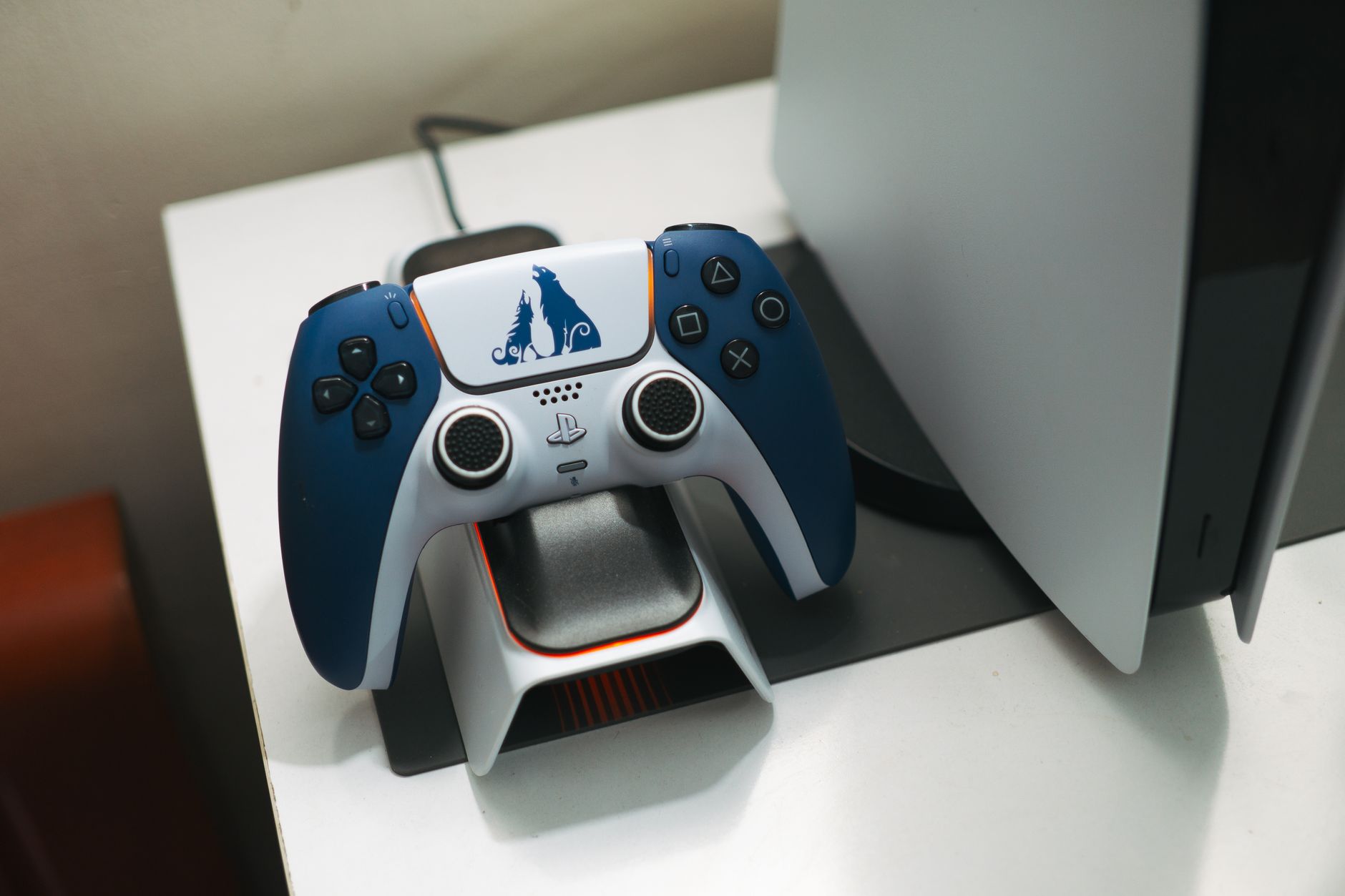
Personalize your DualSense controller experience to suit your comfort and play style. General controller settings are found under Settings > Accessories > Controller (General).
Here you can adjust the Speaker Volume, Vibration Intensity, and Trigger Effect Intensity of your DualSense controller. You can also change the Controller Indicators Brightness.
For specialized controllers like the DualSense Edge and Access, you can further customize button assignments and create multiple profiles. When using custom controller profiles, check for potential conflicts with in-game controller settings.
Privacy and User Experience
The PS5 offers robust privacy controls to manage who sees your activity and information. Navigate to Settings > Users and Accounts > Privacy.
- Privacy Options: Choose from four pre-set privacy options, ranging from 'Social and Open' to 'Solo and Focused'. You can also select "View and Customize Your Privacy Settings" or "Adjust Privacy Settings by Choosing a Profile" for granular control.
- Hiding Gaming History: To control who can see your gaming history, go to the "Your Activity" section within privacy settings and set "Who can see your gaming history" to "No One."
- Automatic Screenshots: The PS5 can automatically capture screenshots when you earn achievements. To save disk space, you can disable this feature.
Users sometimes face confusion with privacy settings, particularly when trying to display a custom profile picture without revealing their real name. Review your "Your Real Name and Profile Picture" settings carefully to ensure they match your desired level of privacy.
System Maintenance
Keeping your PS5's system software up to date ensures you have access to the latest features, security patches, and performance improvements.
To update your system software, go to Settings > System > System Software > System Software Update and Settings. It's recommended to enable automatic updates to keep your console current.
Frequently Asked Questions
How can I hide the "Media" section on my PS5 profile?
The provided research notes do not specify a setting to hide only the "Media" section of a PS5 profile while keeping gaming activity visible. Privacy options primarily cover broader activity visibility.
What are the optimal DNS addresses for PS5?
The research notes state that changing DNS settings manually can potentially improve internet connection speed, but do not provide specific optimal or recommended DNS addresses to use. Users may need to research public DNS servers or consult their ISP.
Which games support "Power Saver for Games"?
The research notes indicate that "Power Saver for Games" works with "supported games" but do not provide a comprehensive list of specific titles that currently implement this feature.
What are the power differences of "Power Saver for Games" on a PS5 Pro?
The research notes detail the performance and power consumption differences for the standard PS5 when using "Power Saver for Games," but do not provide specific information or comparisons regarding a PS5 Pro model.
Sources
Editorial note: This article was researched with AI-assisted tools, checked against the sources listed above and last updated on 2026-09-26. Spotted an error? Contact the TrendsInNews editors.
Photo: FOX ^.ᆽ.^= ∫ / Pexels