
To connect your PlayStation 5, insert one end of the included HDMI cable into the HDMI OUT port on the rear of the console and the other end into your display device. Next, plug the AC power cable into the AC IN connector on the console and safely connect the plug to an electricity supply before powering it on.
Connecting Power and Display Hardware
Setting up your PlayStation 5 hardware correctly ensures optimal performance and prevents display or power dropouts. Locate a stable flat surface near your television or computer monitor with adequate ventilation. The rear panel of the console houses all your primary input and output connections.
First, take the included HDMI cable and insert one end of the HDMI cable into the HDMI OUT port on the rear of the PS5 console. Take the opposite end of the cable and plug it into any available HDMI input on your display device. While most modern TVs feature multiple HDMI ports labeled with numbers, the specific port you choose does not matter, but you must remember which port number you use. Turn on your TV and switch its input source to match the corresponding HDMI port.
Once your display link is secured, insert the included AC power cable into the AC IN connector on the rear of the PS5 console. Take the power plug and safely insert it directly into a wall outlet or surge protector. To boot up the system, press the physical power button located on the front of the console. You will hear an audible beep as the system starts.
Pairing Your DualSense Wireless Controller
With your console powered on and displaying the startup interface on your screen, you need to sync your controller to navigate the menus. Pair your controller with the console so that the system registers input and assigns the device to an open slot.
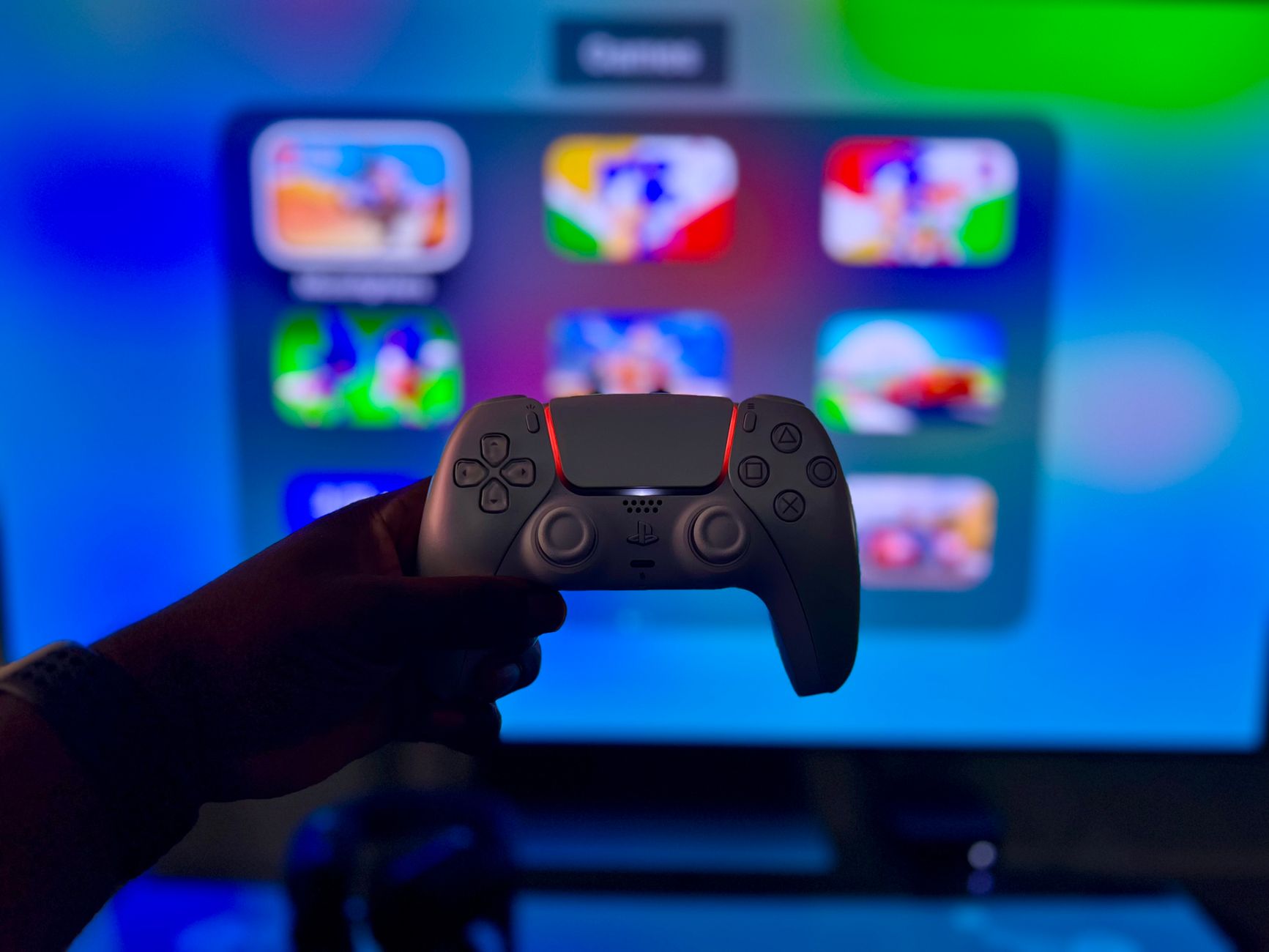
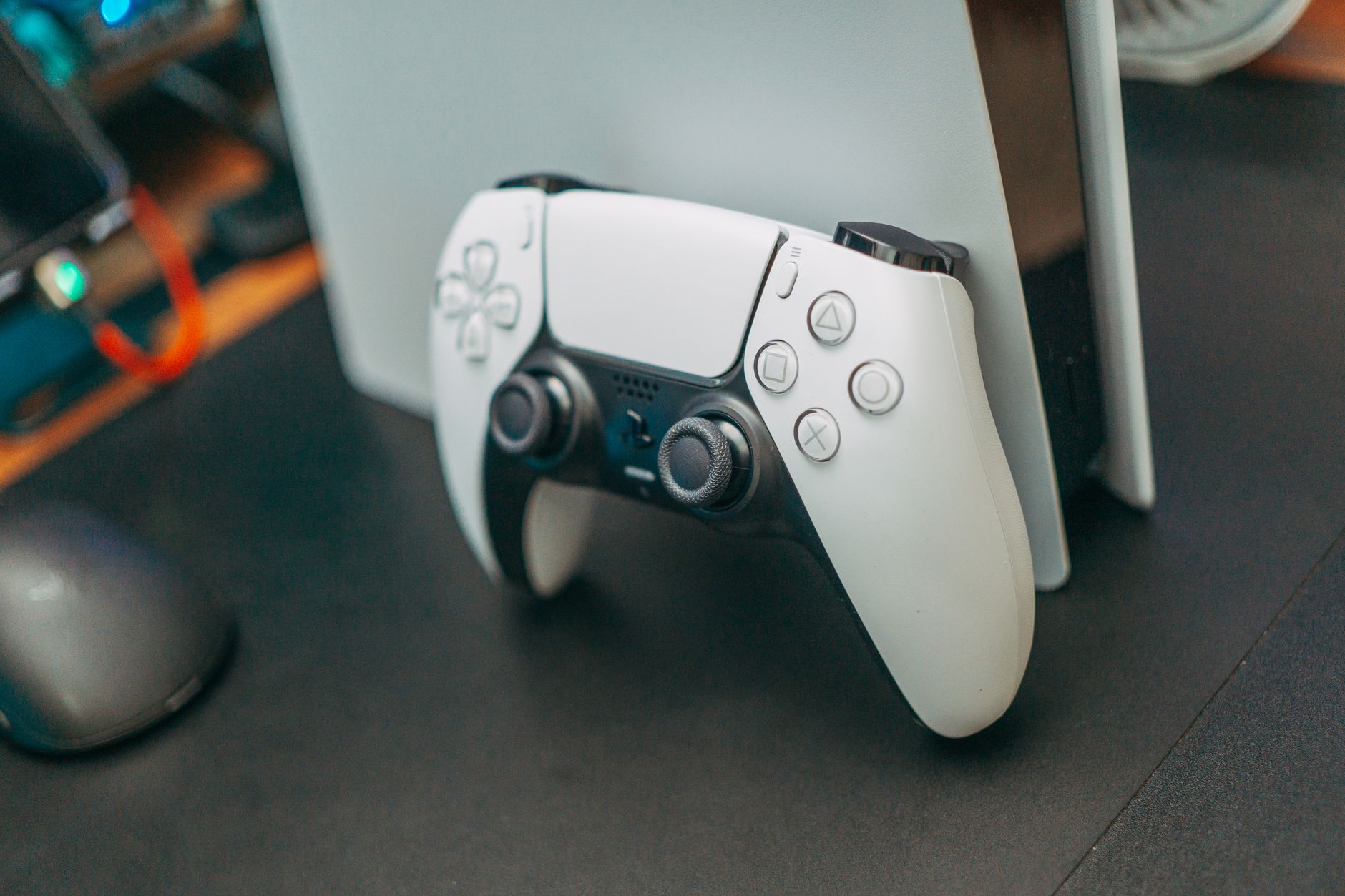
To connect your DualSense wireless controller, you can plug it into the console using a compatible USB cable or connect it wirelessly by pressing the PlayStation button on the controller. Once paired, the indicator light confirms the connection, allowing you to select your preferred language, adjust display settings, and control power options for Rest Mode.
Establishing Network and Internet Connections
To download system software updates, sign in to your PlayStation Network account, and play online multiplayer games, you must connect your hardware to the internet. The console supports both wireless Wi-Fi configurations and direct wired connections.
If you prefer a wired setup, plug an ethernet cable directly from your home network router into the ethernet port located on the back of the PS5 console. For wireless connections, navigate through the system interface by following these steps:
- Go to Settings > Network > Settings > Set Up Internet Connection.
- Select your preferred connection type (Wi-Fi or LAN).
- Choose your target network from the list of new and saved Wi-Fi networks, then enter your network security information to connect.
Note that PS5 consoles support IPv6 network connections, but they do not support IPv6-only network environments. If your home router is restricted to IPv6-only configurations, you will need to change your router settings to use IPv4.
Comparison of PS5 Connection Methods
| Connection Type | Port / Location | Purpose |
|---|---|---|
| HDMI Cable | HDMI OUT (Rear of PS5) | Transmits video and audio signals to your TV or monitor. |
| AC Power Cable | AC IN (Rear of PS5) | Supplies electrical power to the console. |
| Ethernet Cable | LAN Port (Rear of PS5) | Provides a direct, wired internet connection to your router. |
| USB Cable | Front/Rear USB Ports | Used to pair the DualSense controller or transfer data. |
After your internet connection is established and system software updates are complete, the console prompts you to sign in. You can use your existing account details, create a new account, or use the PlayStation App on your mobile device to quickly sign in and finalize your setup.
Frequently Asked Questions
What ports do I need to connect on the back of the PS5?
You need to connect the included HDMI cable to the HDMI OUT port for your display and plug the AC power cable into the AC IN connector for electricity.
How do I connect my PS5 to the internet?
Turn on your console, go to Settings, select Network, then Settings, and choose Set Up Internet Connection to configure either a Wi-Fi network or a wired LAN cable.
How do I connect the DualSense controller to the PS5?
You can pair your DualSense wireless controller to your console by connecting it using a USB cable or by pairing it wirelessly following the on-screen startup prompts.
References & Sources
- Getting started with your new PS5 console
- PS5 - Step by Step Full Setup Guide
- How to set up an internet connection on PlayStation consoles
- PS5 : How to Connect to Any TV Screen
- How to connect a DualSense wireless controller
Editorial Note: This article was researched via verified live web sources and published on 2026-11-28. Questions or feedback? Contact the editorial staff at TrendsInNews.
Photo credit: FOX ^.ᆽ.^= ∫ / Pexels