
Dealing with pixelated, blurry video formats can ruin a creator's reach and frustrate viewers. Fixing low-quality YouTube Shorts requires addressing both the upload pipeline and the app-side playback settings.
To fix YouTube Shorts low quality, ensure you upload from your computer rather than your mobile device to bypass heavy mobile compression. Additionally, optimize your export settings using standard editing suites and manually adjust your app playback preferences to higher quality.
Optimize Your Upload Workflow and Export Settings
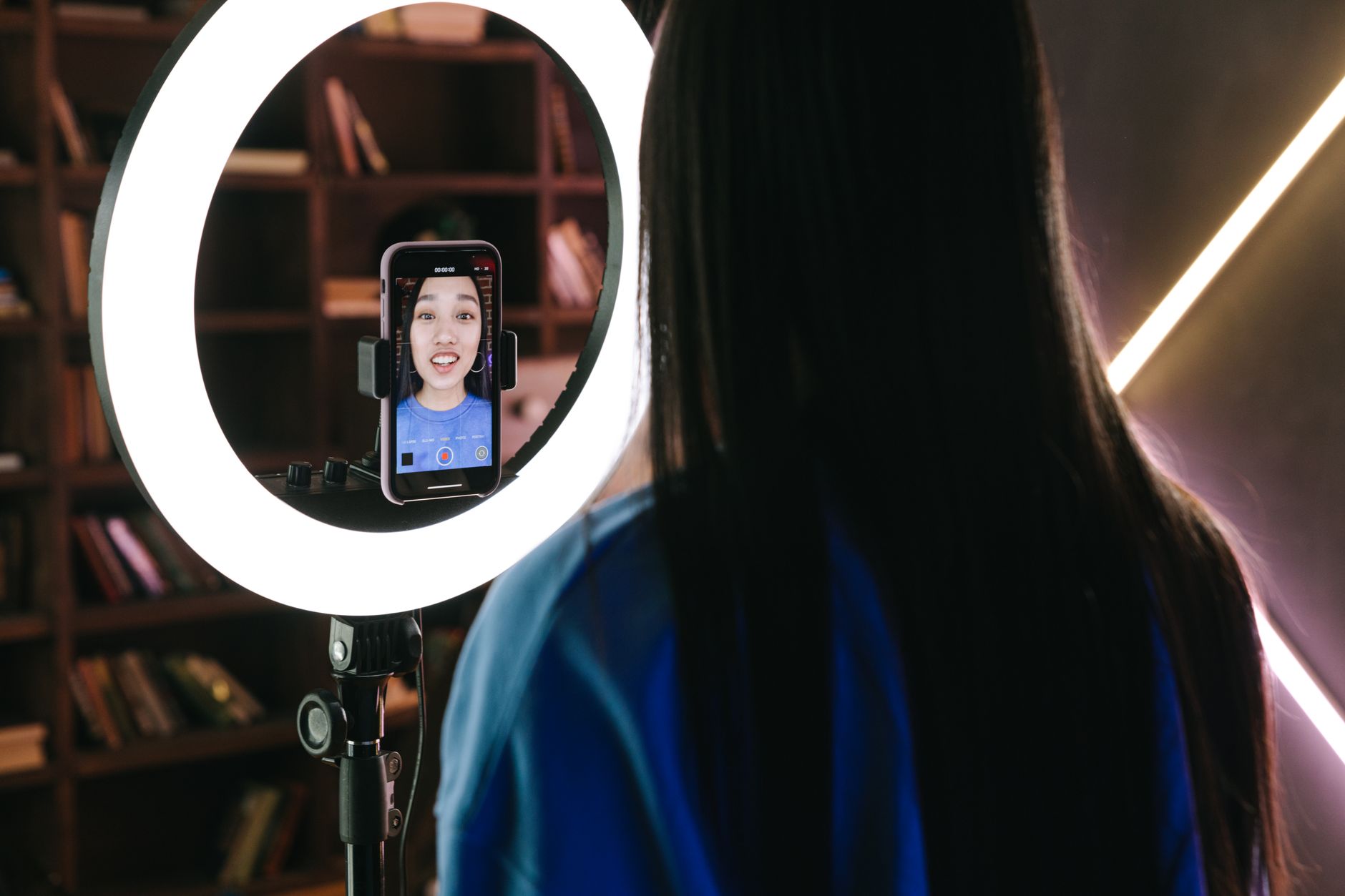
The journey to a crisp, high-definition short starts long before the content hits the platform. Many creators mistakenly shoot and upload straight from their phones, triggering automated compression algorithms that degrade visual fidelity.
To secure optimal results, never upload from your phone. Moving your final cut to a computer before publishing bypasses the compression routines applied by mobile apps. When editing your project, always maintain a strict vertical aspect ratio so that YouTube correctly indexes the media as a Short rather than a standard horizontal video.
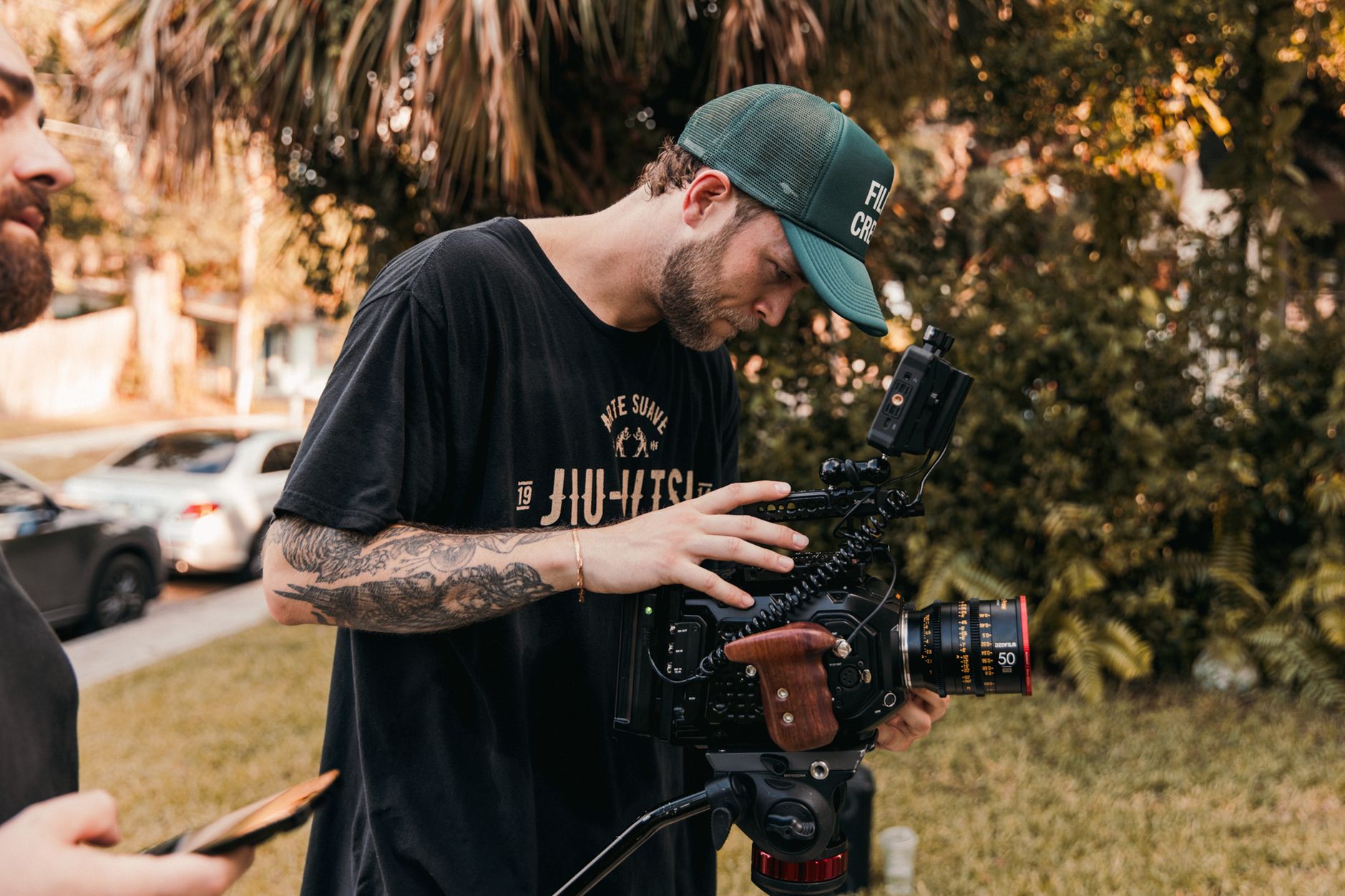
When exporting your project, rely on established software suites. You can use the video editing presets built inside Final Cut Pro, DaVinci Resolve, and Premiere Pro. The goal is to keep your file sizes as small as possible while still exporting in 4K resolution. Smaller, optimized 4K files process cleaner and faster once they reach Google's servers.
Understand YouTube Processing Times and 4K Badges
A common point of panic for creators is watching a newly published video look grainy or stuck in standard definition. This is a normal part of the platform's infrastructure.
When you upload a video, it will initially be processed in low quality to help complete the upload process quickly. Once the baseline upload flow finishes, the file streams in low resolution while heavy background rendering takes place. Higher-quality variants like 4K or 1080p demand substantial background rendering time. Higher-resolution processing can take several hours depending on server load and account verification status. You must exercise patience and wait until you see the 4K indicator appear on your video management page before expecting viewers to experience top-tier visuals.
| Stage | Recommended Action | Goal |
|---|---|---|
| Export | Use editing presets in Premiere, Resolve, or Final Cut | Keep file sizes small while maintaining 4K resolution |
| Upload | Transfer files and upload from a computer | Avoid the heavy compression applied by mobile apps |
| Processing | Wait for background server rendering to finish | Ensure high-resolution options unlock for viewers |
| Playback | Adjust YouTube app video quality preferences | Force mobile data and Wi-Fi to use higher quality tiers |
Fixing Playback Quality Issues on Mobile Devices
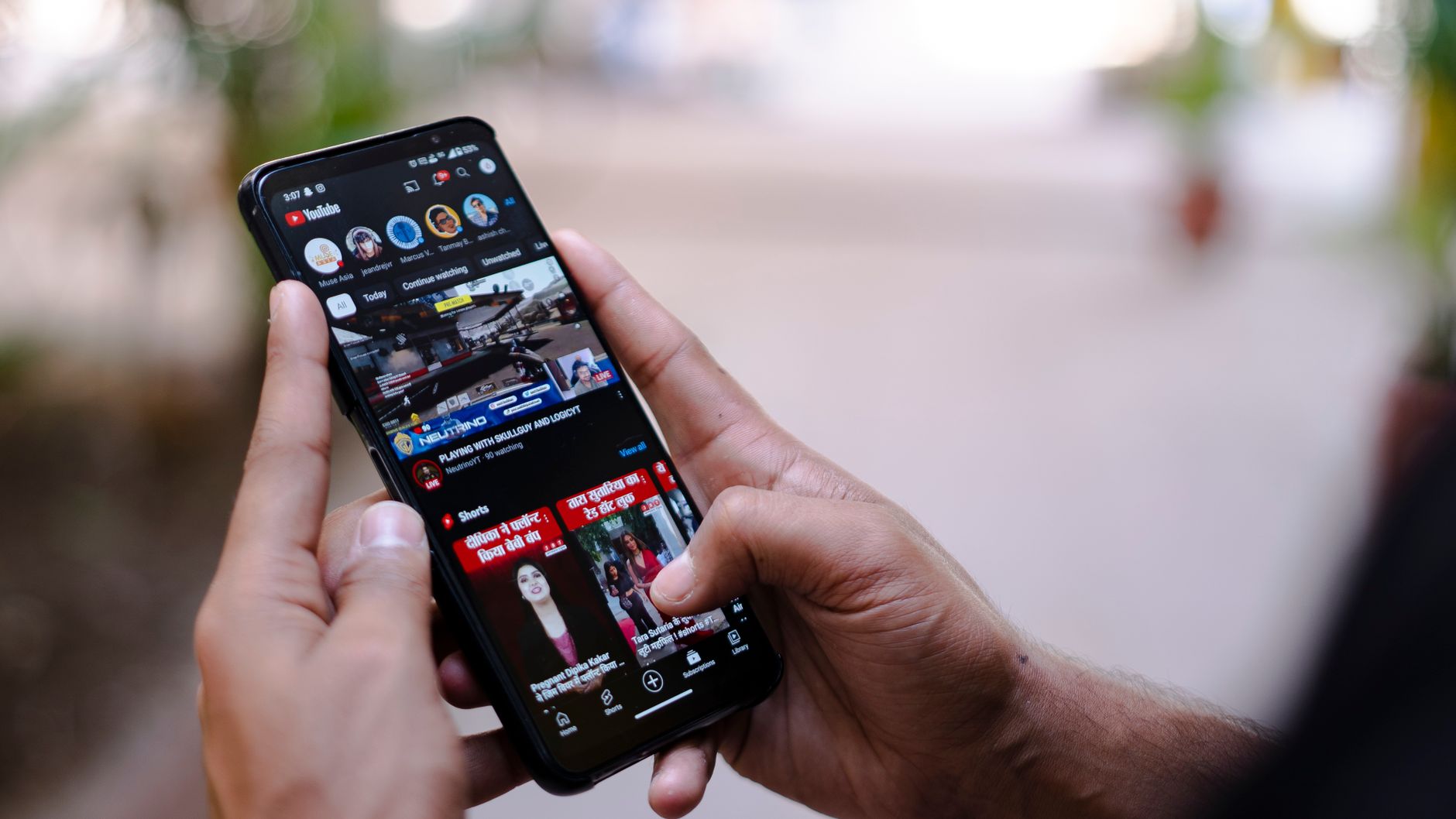
Sometimes the issue is not the source file, but rather how your specific device streams the content. Many viewers experience shorts defaulting to low resolutions like 240p or 144p despite having fast internet connections.
To combat forced low-resolution playback, you need to configure your app settings manually:
- Open the YouTube app and navigate to your profile picture in the top right corner.
- Click on Settings and select Video quality preferences.
- Ensure that both the Mobile data and Wi-Fi settings are configured to a higher quality option, such as High or Full Quality.
If adjusting preferences fails to resolve the problem, deeper troubleshooting steps may be necessary. Clear your YouTube app cache and data to remove corrupted temporary files. If caching does not work, try completely uninstalling and reinstalling the YouTube app. Finally, verify that your phone's operating system is fully updated and that your hardware supports modern high-resolution playback.
Frequently Asked Questions
Why do my YouTube Shorts look blurry right after uploading?
YouTube initially processes uploads in low quality to make them available faster. Higher-resolution files like 4K require significantly more background processing time before high-definition playback becomes active.
Should I upload YouTube Shorts from my phone or computer?
You should always upload from your computer. Uploading directly from a mobile device often results in heavy compression that severely degrades the visual quality of your video.
How do I fix YouTube Shorts stuck playing in 240p on my phone?
Open the YouTube app, navigate to your profile settings, select video quality preferences, and manually set both mobile data and Wi-Fi options to higher quality. You can also try clearing your app cache or checking for software updates.
References & Sources
- How to upload 4K YouTube Short Videos (fix low quality shorts)
- YouTube shorts quality - YouTube Community
- How do I stop YouTube shorts looking terrible
- Low video quality after upload - YouTube Help
- How To Upload High Quality YouTube Shorts
Editorial Note: This article was researched via verified live web sources and published on 2026-10-11. Questions or feedback? Contact the editorial staff at TrendsInNews.
Photo credit: Viralyft / Pexels